Moving to a new password manager shouldn't mean retyping every login by hand. DroidPass can import your existing passwords from Google, Apple, every major browser, and other password managers — usually in under two minutes.
On Android there is now a faster way. Since September 2026, Google Password Manager can hand your logins — and your passkeys — straight to DroidPass with no file to export at all. If that is where your passwords live, read transferring from Google Password Manager first; the CSV steps below are the fallback.
What you can import from
- Google Password Manager (Google account / Chrome passwords)
- Apple Passwords (iCloud Keychain)
- Browsers: Chrome, Edge, and Firefox
- Other managers: 1Password, Bitwarden, LastPass, and Dashlane
- Any CSV file — use the generic option with a downloadable template
DroidPass reads standard CSV exports and is smart about column names, so you don't have to reformat the file. It even imports any 2FA / one-time-password secrets stored in the file.
Step 1: Export your passwords as a CSV
From Google Password Manager
Open passwords.google.com (or Chrome → Settings → Autofill → Passwords), tap the
settings icon, and choose Export passwords. You'll get a .csv file.
From Apple Passwords (iCloud Keychain)
On iPhone, open Settings → Passwords, tap the menu, and choose Export. On a Mac, open the Passwords app and choose File → Export All Passwords.
From another password manager
1Password, Bitwarden, LastPass, and Dashlane all have an "export to CSV" option in their settings or desktop apps. Export the unencrypted CSV so DroidPass can read it.
Step 2: Import into DroidPass
In DroidPass, go to Settings → Import Passwords, then pick your source from the grid. DroidPass shows step-by-step export instructions tailored to the app you chose, so you're never guessing. Select the CSV file you exported.
Step 3: Review and confirm
DroidPass parses the file, shows how many entries it found, and skips duplicates automatically. Imported items are tagged by source (for example "Google" or "Apple") so they're easy to filter and review later. Confirm, and you're done.
A note on security
The CSV file from any password manager is unencrypted — treat it carefully. After the import, DroidPass deletes its working copy of the file from the app's storage. We recommend you also delete the CSV from your Downloads/Files and empty the trash once the import is complete.
Free plan limits
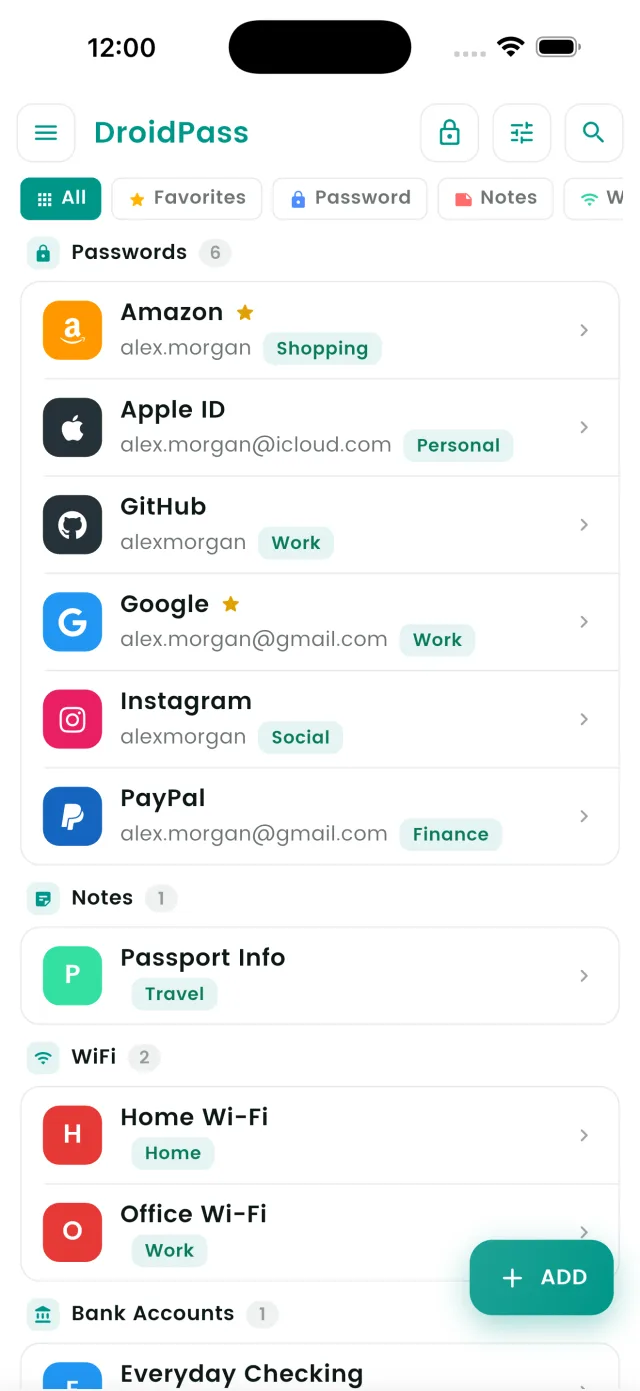
The free plan stores up to 6 items. If your export has more logins than your remaining free slots, DroidPass imports what fits and prompts you to upgrade. DroidPass Pro imports everything with unlimited storage.
Frequently asked questions
How do I export passwords from Google Password Manager?
On a computer, open passwords.google.com, click the settings gear and choose Export passwords. Chrome reaches the same screen through Settings, then Autofill and Google Password Manager. You confirm with your device password and get a CSV file.
How do I export from Apple Passwords or iCloud Keychain?
On a Mac, the Passwords app exports with File then Export All Passwords, which produces a CSV. On iPhone and iPad the same option sits inside the Passwords app's own settings. Apple moves this menu between iOS versions, so exporting from a Mac is the more reliable route.
Should I delete the passwords from Google or Apple afterwards?
You do not have to, but leaving both active means two managers offering to save and fill the same logins, and the two copies drift apart over time. Most people import, check the new vault, then turn off the old manager's save prompts.
Is the exported file encrypted?
No. Every password export is plain text by design, which is what makes it readable by another app. Delete the file as soon as the import finishes, and empty the trash so it cannot be recovered.
Bring all your passwords with you
Import from Google, Apple, and any other app — then keep them safe in DroidPass.
Download for iPhone