Switching to DroidPass from another password manager takes about five minutes. Whether you're leaving LastPass, 1Password, Bitwarden, Dashlane, Keeper or NordPass, the process is the same: export your data to a CSV file, then import that file into DroidPass. Here's exactly how.
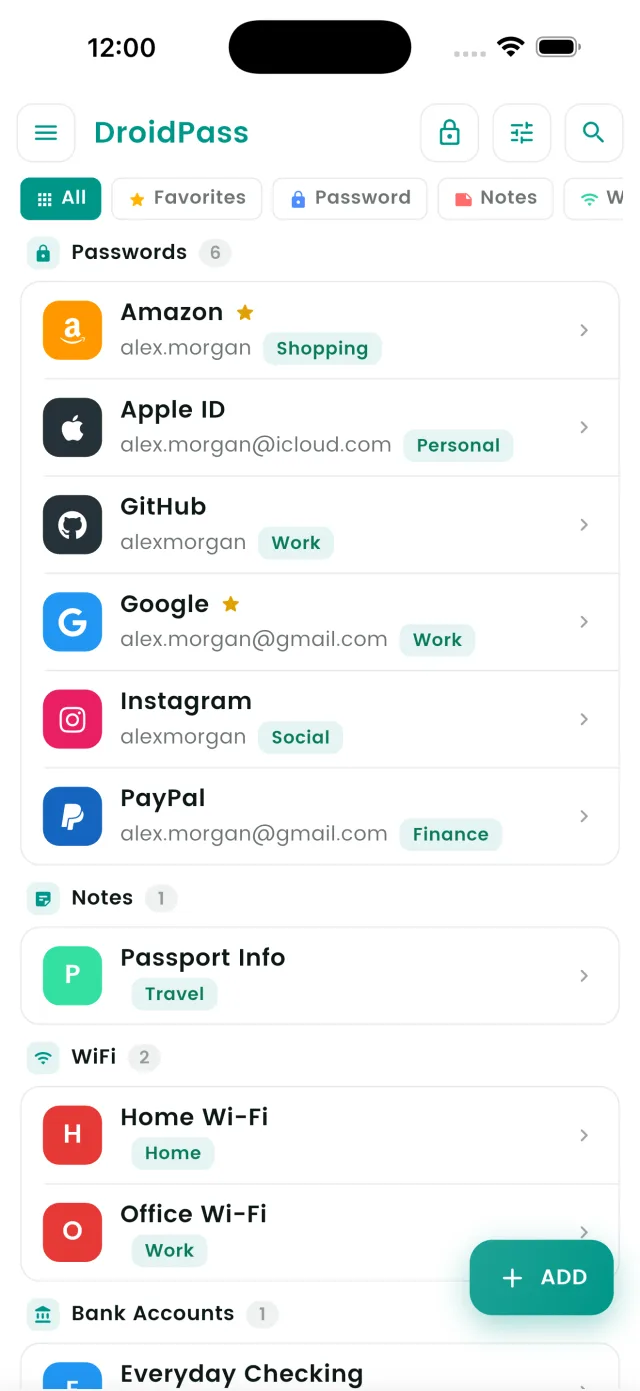
The two-step move: export, then import
Every password manager lets you export your vault to a CSV file — a simple spreadsheet of your logins. DroidPass reads that file and adds every entry to your encrypted vault. Step one is exporting from your current app; step two is importing into DroidPass.
Step 1: Export a CSV from your current password manager
LastPass
On the web, open Advanced Options → Export from the left menu, confirm your master password, and LastPass downloads a CSV file.
1Password
Use the desktop or web app: open File → Export (or your account menu → Export), choose the CSV format, and enter your account password.
Bitwarden
In the web vault, go to Tools → Export Vault, pick the .csv file format, and confirm to download.
Dashlane
In the Dashlane web app, open My Account → Settings → Export data and choose the CSV option.
Keeper, NordPass & others
Look for Settings → Export (or "Export vault") and select CSV. Almost every manager offers a CSV export — that's all DroidPass needs.
Step 2: Import the CSV into DroidPass
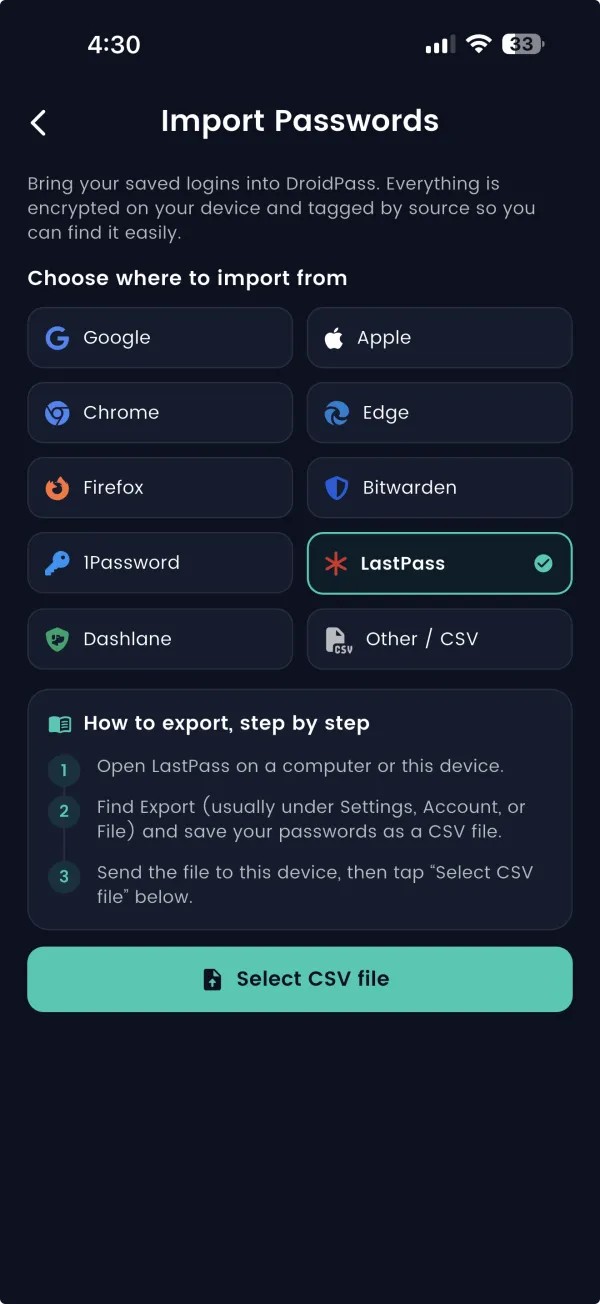
- Open DroidPass and go to Settings → Import Passwords.
- Under “Choose where to import from”, tap your source — LastPass, 1Password, Bitwarden, Dashlane, or Other / CSV.
- DroidPass shows a short “How to export, step by step” guide for that app. Once the CSV is on your device, tap “Select CSV file” and choose it.
- Every login is added to your vault — encrypted with AES-256 and tagged by source so it's easy to find.
Important: delete the CSV afterwards
A CSV export is plain, unencrypted text — anyone who opens it can read every password. As soon as your import finishes, permanently delete the CSV file from your device and empty your Downloads and Trash. Your passwords are safe again the moment they're inside DroidPass's encrypted vault.
What comes across
Your logins — website, username, password and notes — transfer in one go. After importing, run the built-in password audit to catch weak or reused passwords, and set up the built-in authenticator so your 2FA codes live right next to your logins.
Free vs Pro
You can import and store your first entries on the free plan. DroidPass Pro unlocks unlimited passwords, unlimited authenticator codes and the full password audit — ideal when you're bringing over a large vault.
Frequently asked questions
How do I get my passwords out of LastPass, 1Password or Bitwarden?
Each one exports a CSV file from its web or desktop app: LastPass under Advanced Options, 1Password from your account page, Bitwarden under Tools then Export vault. The mobile apps usually cannot export, so start on a computer.
Is exporting to CSV safe?
The file is unencrypted plain text, so anyone who opens it reads every password. Treat it as a live credential: keep it on your own machine, import it straight away, then delete it and empty the trash. Never email it or drop it in a shared cloud folder.
Will importing create duplicate entries?
Importing adds entries rather than merging them with what is already there, so importing the same file twice gives you two copies of everything. Import once, then check the item count before you delete the CSV.
How many passwords can the free plan hold?
Six items, counted across every type: passwords, cards, bank details, Wi-Fi credentials, notes and contacts. A bigger vault needs DroidPass Pro, which is $17.99 a year on Google Play or $29.99 a year on the App Store.
Make the switch to DroidPass
Bring your passwords with you in minutes. Start free.
Download for iPhone