Import Passwords to DroidPass From Any App or Browser
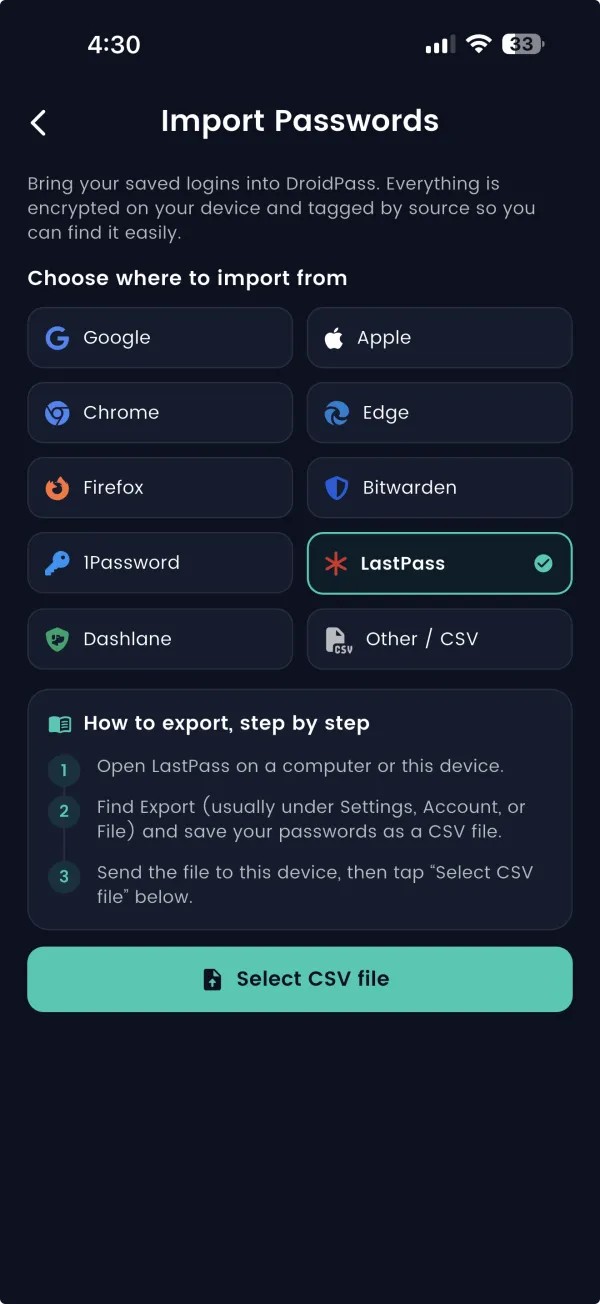
The hardest part of switching password managers is moving your data — so DroidPass makes it a guided, five-minute job. Open Settings → Import Passwords, pick where your passwords live today, follow the built-in export guide, and select the file. That's it. Import is free on every plan.


In short
Guided import from six major sources — or any CSV. DroidPass walks you through exporting from your old manager with a step-by-step guide for each source, then imports your logins in one step. No spreadsheet wrangling, no retyping, no charge.
Supported sources
DroidPass includes dedicated import flows for the places passwords most often live:
- Google / Chrome — the Google Password Manager built into Chrome and Android.
- Apple / iCloud Keychain — passwords saved in Safari and the iOS Passwords app.
- 1Password
- LastPass
- Bitwarden
- Dashlane
- Any CSV file — a generic option for every other manager or browser that can export CSV.
Coming from a paid manager? See how DroidPass stacks up first: DroidPass vs LastPass.
How to transfer your passwords, step by step
- Export a CSV from your old manager. Every source above can export your logins as a CSV file from its settings.
- Open DroidPass and go to Settings → Import Passwords.
- Choose your source — Google, Apple, 1Password, LastPass, Bitwarden, Dashlane, or CSV.
- Not sure how to export? Tap the in-app "How to export, step by step" guide for your exact source — no searching the web mid-switch.
- Select the CSV file. DroidPass reads it and adds your logins to the vault in one step.
- Delete the CSV file afterward. The export holds your passwords in plain text, so remove it once the import finishes.
Detailed walkthroughs for your old manager
If you want exact click-by-click instructions for a specific source, we have written them up with screenshots:
- Import from LastPass, 1Password, or Bitwarden — leaving another password manager.
- Import from Google Chrome or Apple iCloud Keychain — moving out of your browser's built-in manager.
Import is free — and so is starting over properly
Some password managers lock migration behind a paywall. DroidPass doesn't: import is included on the free plan, along with up to 6 items, one built-in authenticator code, unlimited devices, and 29 languages. Once your passwords are in, they are protected by AES-256 encryption with a encrypted on your device on your device before anything syncs, plus biometric unlock and offline access.
Upgrading later is optional. DroidPass Pro adds unlimited items, unlimited 2FA codes, cloud backup and sync, and the password security audit for $29.99/year (about $2.49/month).
Import passwords FAQ
Which password managers and browsers can I import from?
DroidPass has guided imports for Google Chrome, Apple iCloud Keychain, 1Password, LastPass, Bitwarden, and Dashlane, plus a generic CSV option that works with any manager or browser that can export a CSV file. Each source includes an in-app "How to export, step by step" guide.
Is importing passwords into DroidPass free?
Yes. Import is included on the DroidPass free plan, so you can bring your passwords over from your old manager or browser without paying anything. The free plan also includes up to 6 items, one built-in authenticator code, and unlimited devices.
What should I do with the exported CSV file after importing?
Delete it. A CSV export contains your passwords in plain, unencrypted text, so once DroidPass has imported it you should remove the file from your downloads folder and empty the trash. Inside DroidPass, your data is encrypted with AES-256 on your device.
Bring your passwords over today
Download DroidPass free, open Settings → Import Passwords, and be done before your coffee gets cold.
Also see: Encrypted password vault · Built-in 2FA authenticator · DroidPass vs 1Password