You're on a plane, in the subway, hiking abroad with no roaming — and you need a password. With a cloud-only password manager, no connection can mean no access. DroidPass is built as an offline password manager: your encrypted vault lives on your device, so your passwords are always available, even with zero signal.
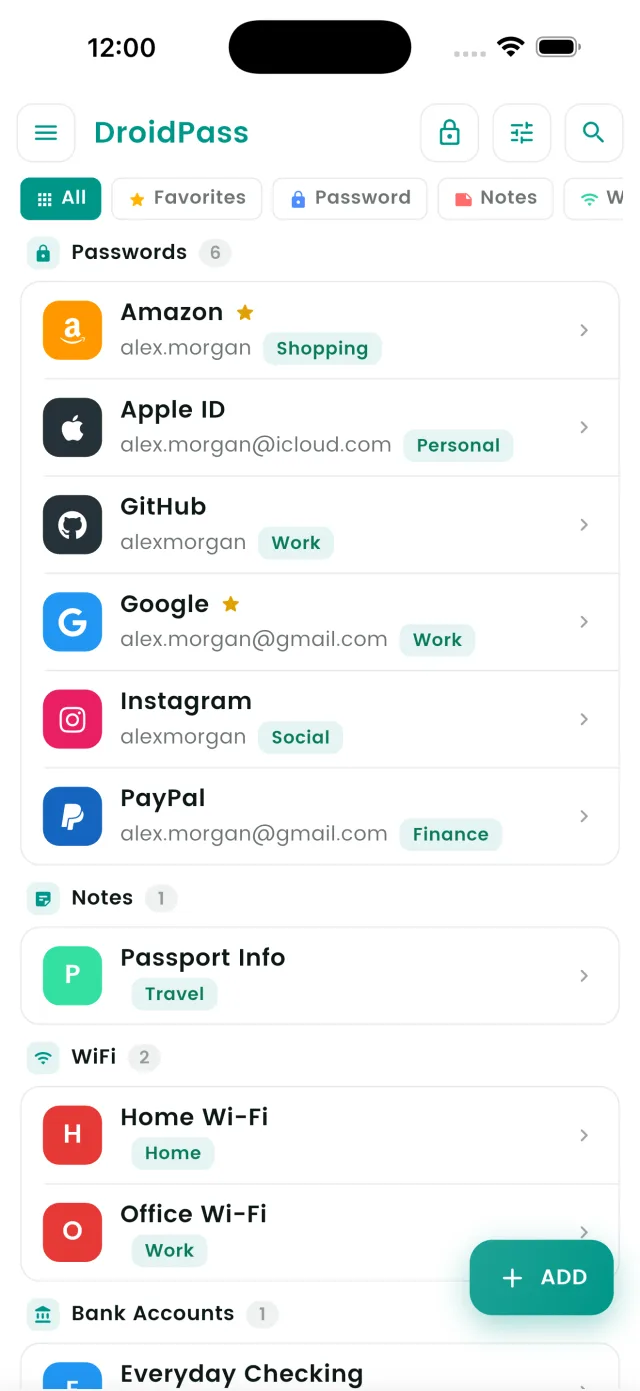
What is an offline password manager?
An offline password manager keeps an encrypted copy of your vault directly on your device instead of only on a remote server. When you open the app, it reads from that local encrypted copy — the internet is not part of the unlock path. Cloud-only tools do the opposite: they fetch your data from a server when you need it, which works great right up until the moment you don't have a connection.
DroidPass uses a hybrid approach — the best of both worlds. Your vault is fully readable offline, and when you're back online, encrypted sync quietly brings every device up to date. You never have to choose between "always available" and "synced everywhere."
Why offline access matters more than you think
- Flights and airplane mode. Wi-Fi password for the lounge, booking reference, frequent flyer login — all needed exactly when you're offline.
- Traveling abroad. No roaming plan, no hotel Wi-Fi yet, but you need the password for your email or bank the moment you land.
- Dead zones. Basements, elevators, parking garages, rural areas — daily life is full of places where signal drops.
- Network outages. When your carrier or a cloud provider has a bad day, a cloud-only vault has a bad day with it.
- Emergencies. The worst time to be locked out of your accounts is precisely when something has gone wrong.
A password manager is supposed to remove stress, not add a dependency. Offline access is the difference between a tool you rely on and a tool you rely on when conditions are right.
How DroidPass works offline
Reading your vault — no connection needed
Every entry you save — logins, credit and debit cards, bank details, Wi-Fi passwords, secure notes — is stored in an AES-256 encrypted vault on your device. Opening the app, unlocking with your Master PIN or biometrics, searching, and viewing any entry all happen locally. Airplane mode changes nothing.
Encrypted sync when you're back online
The moment your device reconnects, DroidPass syncs your encrypted vault in the background. Changes you made while offline are pushed up, and changes from your other devices come down — automatically, with no "sync now" button to remember. Your phone, tablet, and any other device converge on the same up-to-date vault.
Your 2FA codes work offline too
This is where offline design really pays off. DroidPass includes a built-in 2FA authenticator, and time-based one-time passwords (TOTP) are generated mathematically on your device from the stored secret and the current time. No server is involved — so your 6-digit codes keep rotating every 30 seconds even in airplane mode. Password and second factor, both available with no signal.
Offline vs cloud-only: what's the real difference?
- Availability. Offline-capable: your vault opens anywhere, anytime. Cloud-only: access depends on your connection and the provider's servers.
- Speed. Reading from local storage is instant. There is no spinner while your passwords download.
- Resilience. A server outage doesn't lock you out of an offline-capable vault.
- Multi-device sync. A purely local vault (a file on one device) is always available but painful to keep in sync. DroidPass's hybrid model gives you offline reading and automatic encrypted sync.
Is an offline vault secure?
Yes — offline storage and strong security go hand in hand. Your vault is protected with AES-256 encryption, the same standard used by banks and governments, and your Master PIN is the key: data is encrypted on your device, and only you can unlock it. Biometric unlock (fingerprint or face) adds convenience on top, and everything at rest on the device stays encrypted. Someone who gets hold of your phone gets an encrypted blob, not your passwords.
Offline access doesn't weaken this model — it strengthens it. The fewer moments your security depends on a network, the smaller your exposure.
What you can do in DroidPass with no internet
- Unlock your vault with your Master PIN or biometrics
- View and search every saved login, card, bank detail, Wi-Fi password, and secure note
- Generate live 2FA (TOTP) codes for your accounts
- Create strong random passwords with the built-in generator
- Add and edit entries — changes sync automatically when you reconnect
How to make sure your vault is ready offline
- Sign in and unlock your vault once while you have a connection — your encrypted data is stored on the device automatically.
- That's it. There is no "offline mode" toggle to enable. Offline availability is the default, not a setting.
Before a long flight or a trip abroad, just open DroidPass once on Wi-Fi so the latest changes from your other devices are synced down. From then on, everything works without a connection.
Frequently asked questions
Do I need internet to unlock DroidPass?
No. Unlocking with your Master PIN or biometrics happens entirely on your device. Your vault opens in airplane mode exactly as it does on Wi-Fi.
Do my 2FA codes work without a connection?
Yes. TOTP codes are generated on-device from the stored secret and the clock — no server is contacted. Codes keep rotating every 30 seconds offline.
What happens to changes I make while offline?
They're saved locally right away and synced automatically the next time your device is online. Your other devices pick them up through encrypted sync.
Is offline storage safe if my phone is lost or stolen?
Your vault is AES-256 encrypted with your Master PIN as the key. Without your PIN or biometrics, the data on the device is unreadable. On a new device, just sign in and your encrypted vault syncs back.
Your passwords, available everywhere
Offline vault, encrypted sync, built-in 2FA authenticator — all in one app.
Download for Android Download for iPhone