A passkey manager that keeps your passkeys with your passwords
A passkey replaces a website’s password with a key that lives on your device and is unlocked by your face, your fingerprint or your Master PIN. DroidPass stores them next to the passwords you still need, and syncs them to your other devices.


Passkeys work where a website or app supports them. Everywhere else, DroidPass fills your password as usual.
In short
You create a passkey on a site that offers one, confirm with Face ID, Touch ID or your Master PIN, and DroidPass files it into your vault. Next time you sign in there is nothing to type and no code to wait for. Passkeys sync to your other devices, encrypted before they leave the phone, and a new device needs your Secret Key as well as your PIN before it can open them. The free plan keeps one passkey; Pro removes the limit.
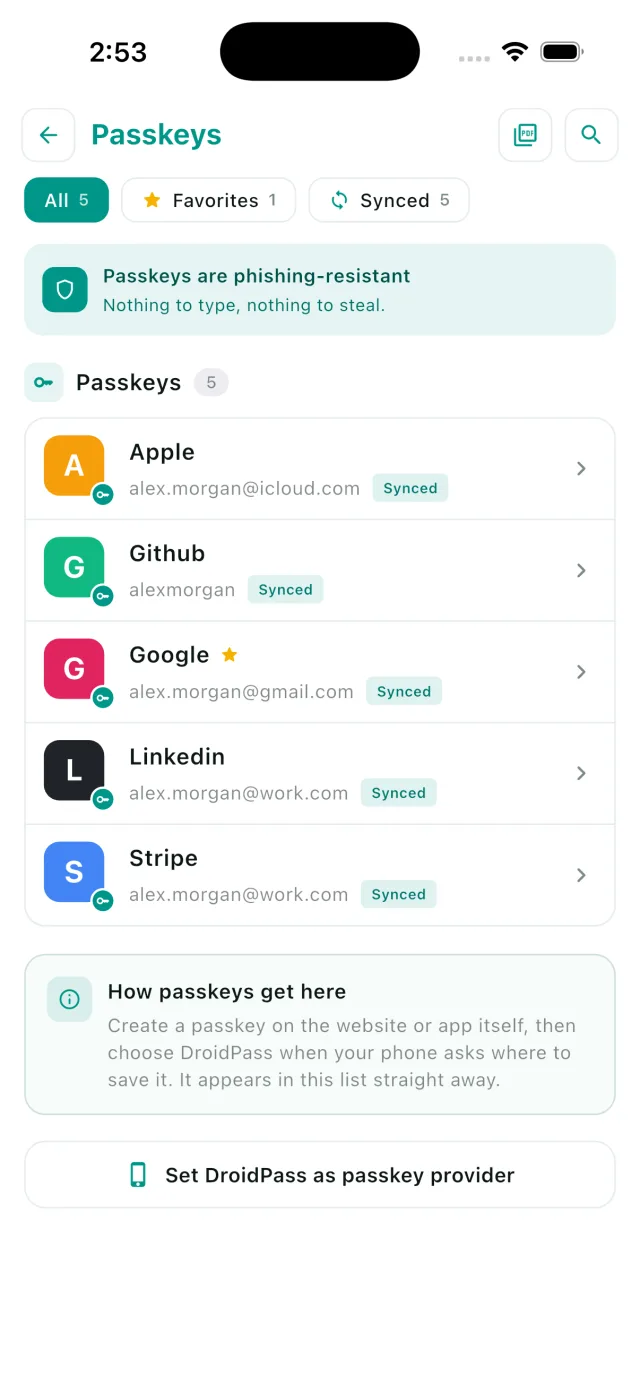
Why a passkey cannot be phished
A password is a shared secret. You know it, the site knows it, and anyone who persuades you to type it somewhere else knows it too — which is the entire business model of phishing. A passkey is a key pair instead. The site keeps the public half, your device keeps the private half, and the private half never leaves. A pixel-perfect copy of your bank’s login page gets nothing from you, because there is nothing you could hand over even if you wanted to.
Creating your first passkey
- Turn DroidPass on as a provider: open the Settings app, tap General, tap AutoFill & Passwords, and enable DroidPass.
- On a site that offers passkeys, choose to create one. It is usually under security or sign-in settings.
- Confirm with Face ID, Touch ID or your Master PIN. DroidPass saves the passkey into your vault.
Signing in afterwards is one step: pick your account, confirm, and you are in. No password, no one-time code, no waiting for an SMS that never arrives.
Syncing, and what a new device needs
Your passkeys sync through your DroidPass account like the rest of your vault, encrypted on the device before they are sent. When you set up a new phone it asks for your Secret Key as well as your Master PIN before it will open them.
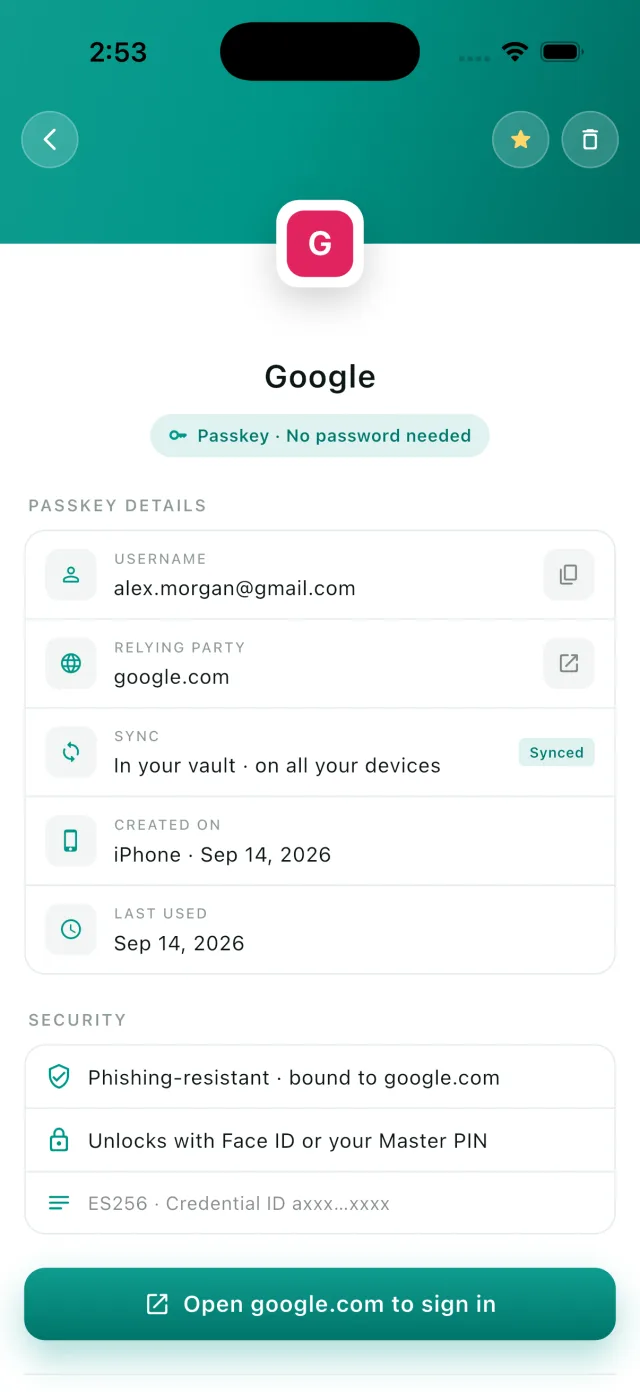
That is deliberate, and it is the part worth understanding: it means someone who learns your PIN still cannot unlock your passkeys on their own device. Your Emergency Kit contains the Secret Key — print it before you need it, not after.
Passkeys do not replace every password yet
They only work where a site has implemented them, and most of the web has not. Treat passkeys as something you switch on account by account as it becomes available. DroidPass holds the passwords for everywhere else, along with the 2FA codes for accounts that still use them, so you are not running two apps during the transition.
Bringing passkeys from another app
If you are switching managers, passkeys can come across with your logins — see instant transfer. One caveat worth knowing in advance: a transferred passkey occasionally arrives looking complete and is still refused by the site, because of how the other app exported it. If that happens, delete it and create a fresh passkey on the site. It takes seconds once DroidPass is your provider.
Passkeys FAQ
What is a passkey?
A passkey is a replacement for a password. Instead of a secret you type, your device holds a private key that is unlocked by your face, fingerprint or PIN. The website only ever sees the matching public key, so there is nothing to steal, reuse or leak in a breach.
Can DroidPass store passkeys?
Yes. DroidPass is a passkey provider on iPhone and iPad. Turn it on in the Settings app under General, AutoFill and Passwords, then create passkeys on any site that offers them. They are stored in the same encrypted vault as your passwords.
Do passkeys work on every website?
No. A passkey only works where the site or app has implemented support. Adoption is growing but most of the web still uses passwords, which is why DroidPass keeps both.
What happens if I lose my phone?
Your passkeys sync to your DroidPass account, so a new device can restore them. That device needs your Secret Key in addition to your Master PIN, so keep your Emergency Kit somewhere safe and offline.
How many passkeys does the free plan include?
One. That is enough to try passkeys on your most important account. Pro removes the limit, along with the six-item cap on the rest of your vault.
Is a passkey safer than a password plus 2FA?
For phishing, yes. A passkey cannot be handed to a fake login page, whereas a password and a one-time code both can be. 2FA is still worth having on accounts that have no passkey option, and DroidPass generates those codes too.
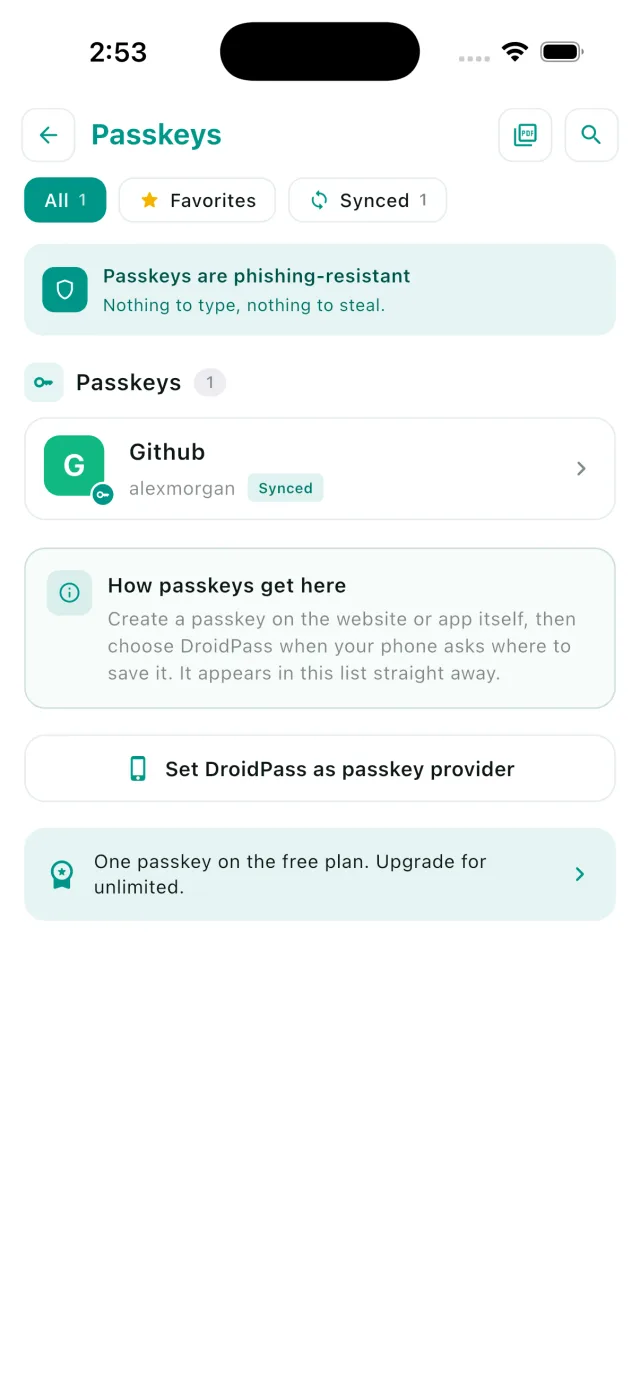
Try a passkey on one account
Download DroidPass, turn it on as your provider, and create a passkey on the next site that offers one. The free plan keeps one, which is all you need to see the difference.
Also see: Instant transfer · Autofill · Encrypted password vault · How passkeys work in DroidPass