Move your passwords across without exporting a file
Switching password managers used to mean exporting a CSV — a plain-text copy of every password you own, sitting in your Downloads folder until you remembered to delete it. Instant transfer removes that step: your logins move from the other app straight into DroidPass, encrypted the whole way.


Requires iOS 26 or later, or Android 8.0 or later — and a source app that supports credential transfer. Otherwise CSV import still works.
In short
On iPhone and iPad you start in the app you are leaving, not in DroidPass: open it, choose its export or transfer option, and pick DroidPass as the destination. DroidPass opens by itself and shows what arrived. On Android it is the other way round — DroidPass starts the transfer and Android lists the apps you can pull from. Either way your logins, and passkeys where the other app holds them, are handed over directly and encrypted with your Master PIN as they are written. No file is created at any point.
What you need
- iOS 26 or later, or Android 8.0 or later. On iPhone and iPad the transfer is built on Apple’s credential exchange, which does not exist before iOS 26. On Android it rides on
androidx.credentialsinstead, so the floor is much lower — but below either version the option is hidden rather than broken. - A source app that supports it. The app you are leaving has to offer transfer too, on both platforms. Credential exchange is a young standard and the list of apps implementing it is still short, so check before assuming.
If either is missing, nothing is lost — CSV import still works, and there are step-by-step guides for LastPass, 1Password, Bitwarden, Dashlane, NordPass and Keeper.
How you actually start it
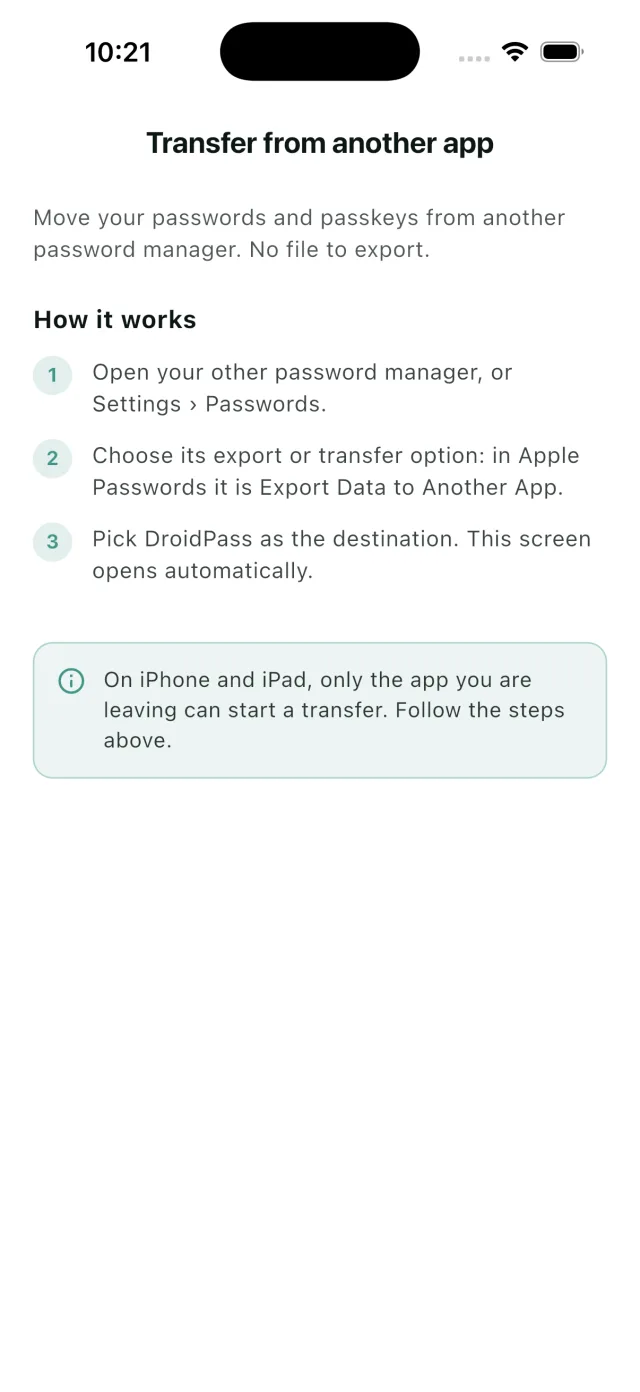
This is the part most guides get backwards, including an earlier version of this page. On iPhone and iPad, DroidPass cannot start the transfer. Only the app you are leaving can, so you begin there:
- Open your other password manager — or Settings › Passwords if you are moving from Apple Passwords.
- Choose its export or transfer option. In Apple Passwords it is called Export Data to Another App.
- Pick DroidPass as the destination. DroidPass opens by itself and tells you how many logins arrived.
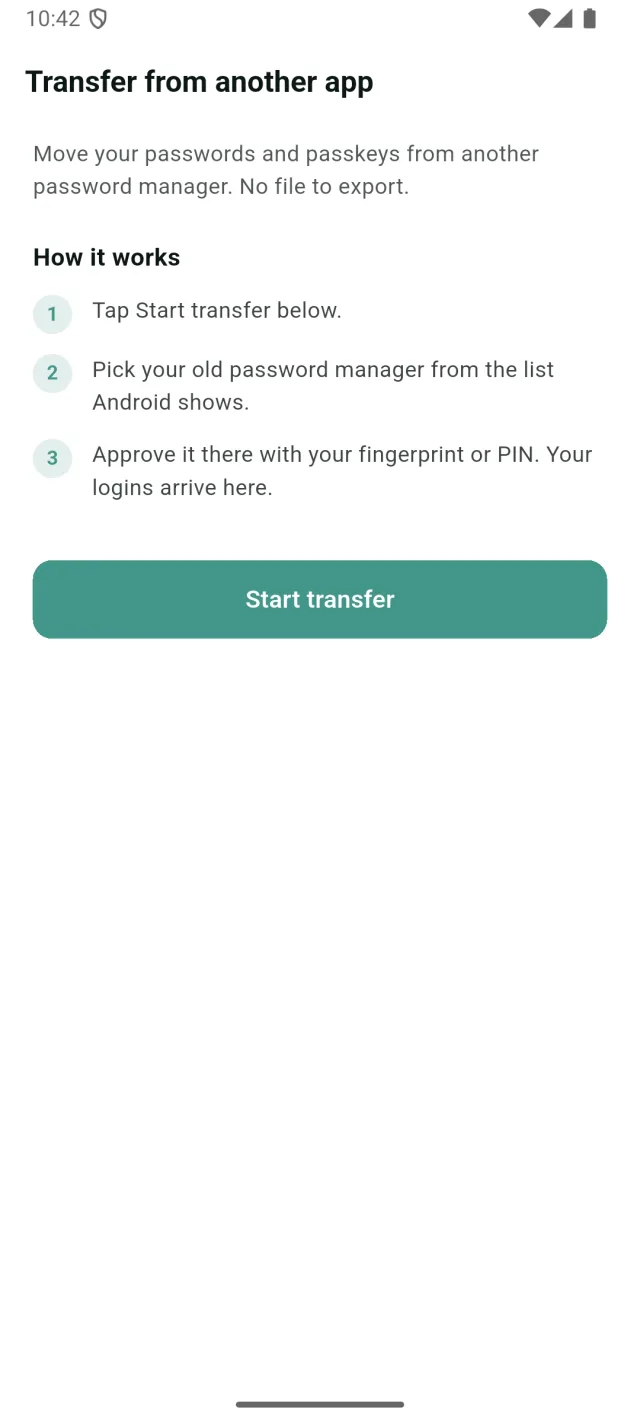
On Android it is reversed. Open DroidPass, go to Settings, tap Transfer from another app, tap Start transfer, and pick your old manager from the list Android shows. You approve it in that app with your fingerprint or PIN and the logins arrive here.
Why avoiding the file matters
A password-manager export is every secret you own in readable text, usually including the seeds for your two-factor codes. It lands in Downloads, it gets synced to a cloud backup, it sits in the folder you AirDropped it from, and it is still there weeks later. Most guides tell you to delete it and most people forget.
A direct transfer never creates that file. The credentials go from one app’s encrypted store to the other’s, and DroidPass encrypts each one with your Master PIN as it writes it.
What moves, and what stays behind
Logins move: the site, the user name and the password. Passkeys move too, where the other app holds them. Each arrives tagged with the app it came from, so you can find them later.
Credential exchange is a young standard and apps implement different parts of it. Attachments, custom fields and folder structures commonly stay behind. Check a handful of entries after the transfer rather than assuming, and keep the other app installed until you have.
If a transferred passkey will not sign in
A passkey can arrive looking complete and still be refused by the site. That is usually a fault in what the other app exported rather than anything on this side — we have seen one manager hand over a passkey that no receiving app could use, including Apple’s own Passwords app. The fix is quick: delete it in DroidPass and create a fresh passkey on the site.
Transfer only goes one way
Instant transfer brings credentials in. It does not push them out to another app. That is not a lock-in tactic — your vault is yours, and Settings, Account, Delete Account removes your account and its data whenever you want.
Instant transfer FAQ
Do I need to export a CSV file first?
No. That is the point of instant transfer: the other app hands your logins over directly, so no plain-text copy is ever written to disk. CSV import is still available if your setup does not support transfer.
Why is the transfer option missing or greyed out?
Two things are required: iOS 26 or later, and a source app that supports credential transfer. If your iPhone is on an earlier version, or the app you are leaving has not implemented it, the option cannot appear. Use CSV import instead.
Which apps can I transfer from?
Any app that implements Apple credential exchange. iOS lists the ones installed on your phone that qualify, so the answer is whatever it shows you — you do not have to check a list anywhere.
Does it transfer my two-factor codes?
Where the source app includes them, yes. Verify one code against the website before you remove the old app, so you know it carried across correctly.
Can I transfer passwords out of DroidPass into another app?
No. Direct transfer brings credentials in, not out. You can still delete your account and all its data at any time from Settings, Account, Delete Account.
Is the transfer encrypted?
Yes. The credentials move between the two apps without being written to a file, and DroidPass encrypts each one with your Master PIN as it saves it — the same encryption as an entry you typed yourself.
Switch without the spreadsheet
Download DroidPass, open Transfer from another app, and bring your logins across without ever writing them to a file.
Also see: Passkeys · Import from a CSV · Autofill · How instant transfer works