Most password advice is stuck in 2010: "use a capital letter, a number and a symbol." In 2026 that is not enough. A strong password is long, random, and unique to one account — and the easiest way to get all three is to stop inventing passwords and start generating them. This guide shows what "strong" actually means, gives real examples, and walks you through our free tools.
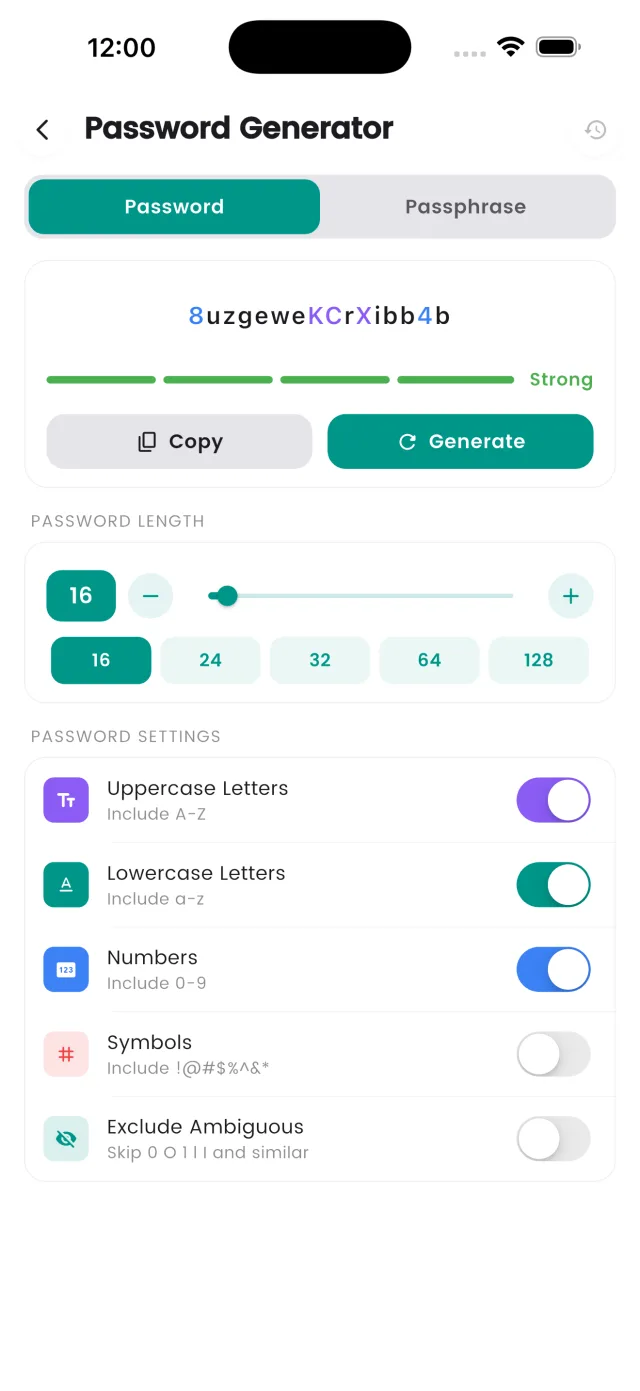
What makes a password strong in 2026?
Attackers no longer guess passwords by hand. They run software that tries billions of combinations per second, and they start with lists of passwords leaked in previous data breaches. Against that, four things matter:
- Length beats complexity. Every extra character multiplies the number of guesses needed. A 16-character password made of lowercase letters is far harder to crack than an 8-character one stuffed with symbols.
- Randomness (entropy). Entropy is just a measure of how unpredictable a password is. A random 16-character mix of letters, numbers and symbols has around 100 bits of entropy — effectively uncrackable. "Password2026!" has almost none, because it follows a pattern cracking tools try first.
- No dictionary words or personal details. Names, birthdays, pets, sports teams and single dictionary words are all in the attacker's first few million guesses.
- Unique for every account. If one site leaks your password, attackers immediately try it on your email, bank and social accounts. This is called credential stuffing and it is the number-one way accounts are taken over.
Strong password examples (good vs. bad)
Here is what the difference looks like in practice:
- Bad:
Summer2026!— dictionary word + year + symbol. Cracked in seconds. - Bad:
Qwerty123456— a keyboard walk plus a number sequence. Top of every wordlist. - Bad:
Max&Lucy1989— pet names and a birth year are the first things a targeted attacker tries. - Good:
corner-velvet-tundra-91-plum— a five-word passphrase with a number. Around 70+ bits of entropy and easy to type. - Good:
T7$wq!vZ2p#Lm9rH&xE— a 20-character random password from a generator. Impossible to memorize, impossible to crack, perfect for a password manager.
Never reuse any example you see online — including these. Once a password is published it is added to cracking wordlists.
The passphrase method (for passwords you must remember)
You still need to memorize a few things: your device passcode, your email password and the Master PIN of your password manager. For those, use a passphrase:
- Pick four to six random, unrelated words. Do not use a famous quote, song lyric or sentence — those are in wordlists too.
- Separate them with a symbol or a space, e.g.
marble.rocket.ivory.canyon. - Add a number or a capital somewhere in the middle, not at the end, e.g.
marble.rocket7.Ivory.canyon. - Aim for at least 16 characters total.
A passphrase like this is long enough to defeat brute force and random enough to defeat wordlists, but you can still picture it in your head.
Common mistakes that weaken a "strong" password
- Reusing one password everywhere — a single breach unlocks all of your accounts.
- Predictable substitutions like
P@ssw0rd. Cracking tools apply these swaps automatically. - Appending a year or "!" to meet a complexity rule. Tools try every common suffix.
- Keyboard walks such as
1qaz2wsxorasdfghjk. - Small changes per site —
Summer2026!fb,Summer2026!gmail. One leak reveals the pattern. - Storing passwords in notes apps or spreadsheets without encryption.
How attackers actually crack passwords
Knowing the methods explains the rules:
- Brute force: trying every combination. Only length defeats it — each extra character makes it exponentially slower.
- Dictionary and rule attacks: trying words, names and known passwords with automatic variations (capitals, numbers, symbols). Only randomness defeats it.
- Credential stuffing: taking email + password pairs from past breaches and replaying them on other sites. Only uniqueness defeats it.
- Phishing: tricking you into typing a password on a fake site. Strength doesn't help here — two-factor authentication does, which is why DroidPass includes a built-in 2FA authenticator.
Why a generator + password manager beats memorizing
Nobody can memorize 80 unique, random, 16-character passwords — and you shouldn't try. The practical answer is to generate a random password for every account and let an encrypted password manager remember it. DroidPass stores your logins in an AES-256 encrypted vault that unlocks with Face ID, Touch ID or your fingerprint, autofills your logins on Android, and includes a password generator on every plan. On Pro, a password security audit flags weak, reused and old passwords so you can fix them one by one. If you are not convinced yet, read why you need a password manager.
Step by step: create a strong password right now
- Open our free password generator. It runs 100% in your browser using a cryptographically secure random generator — nothing is ever sent to a server.
- Set the length to 16–24 characters and keep letters, numbers and symbols enabled (or switch to a passphrase if you need to remember it).
- Paste the result into our password strength checker to see its entropy and estimated crack time. This also runs entirely on your device.
- Save it in DroidPass — or skip the browser entirely and use the in-app generator, which creates and saves the password in a single tap when you add a login.
- Turn on two-factor authentication for the account and store the 2FA code in the DroidPass authenticator.
- Repeat for your most important accounts first: email, banking, cloud storage, social media.
Whether you are on iPhone or Android, the whole process takes under a minute per account.
Generate and save strong passwords in one tap
DroidPass is free, with a built-in password generator, AES-256 encrypted vault and 2FA authenticator.
Download for iPhone Download for Android Download for Mac