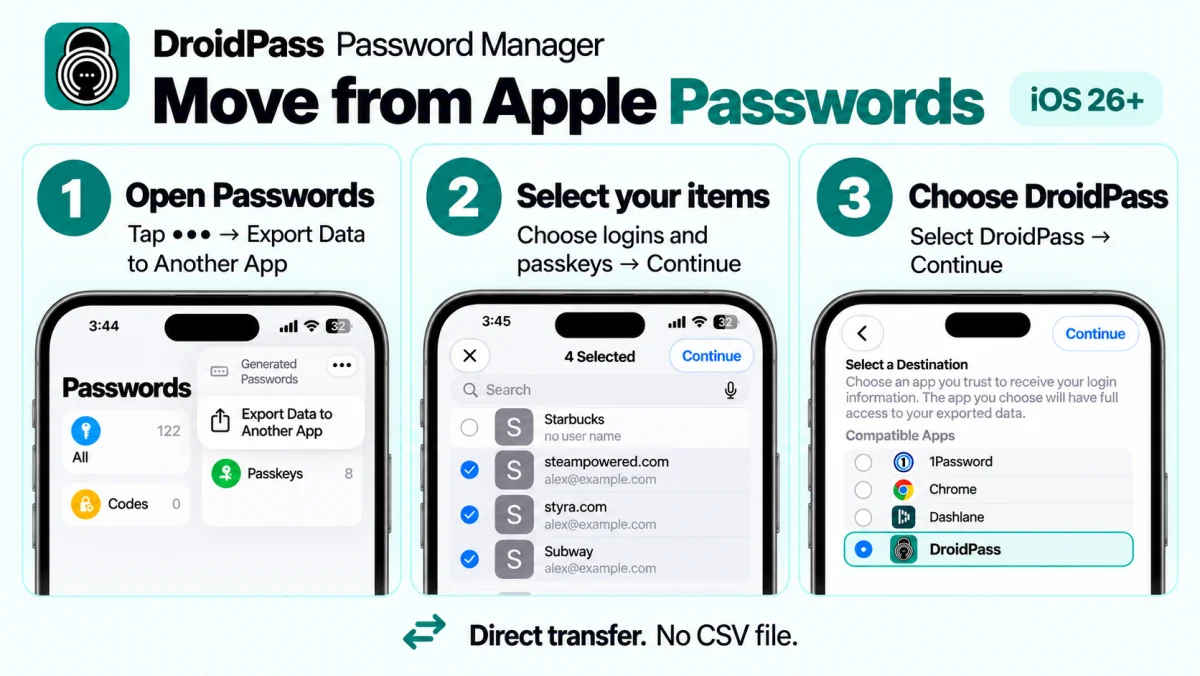
Apple Passwords — the app that grew out of iCloud Keychain — can hand your logins and your passkeys straight to DroidPass. No export file, nothing sitting in your Downloads folder afterwards. The catch is that on an iPhone you cannot start it from DroidPass: Apple only lets the app you are leaving begin a transfer.
Before you start: turn passkeys on
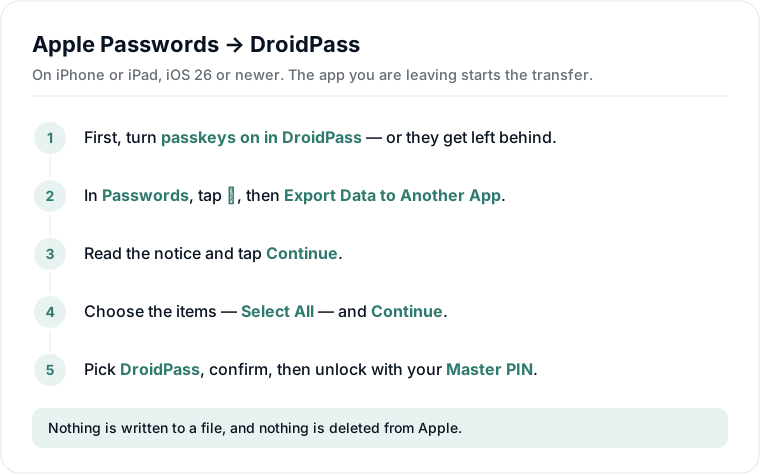
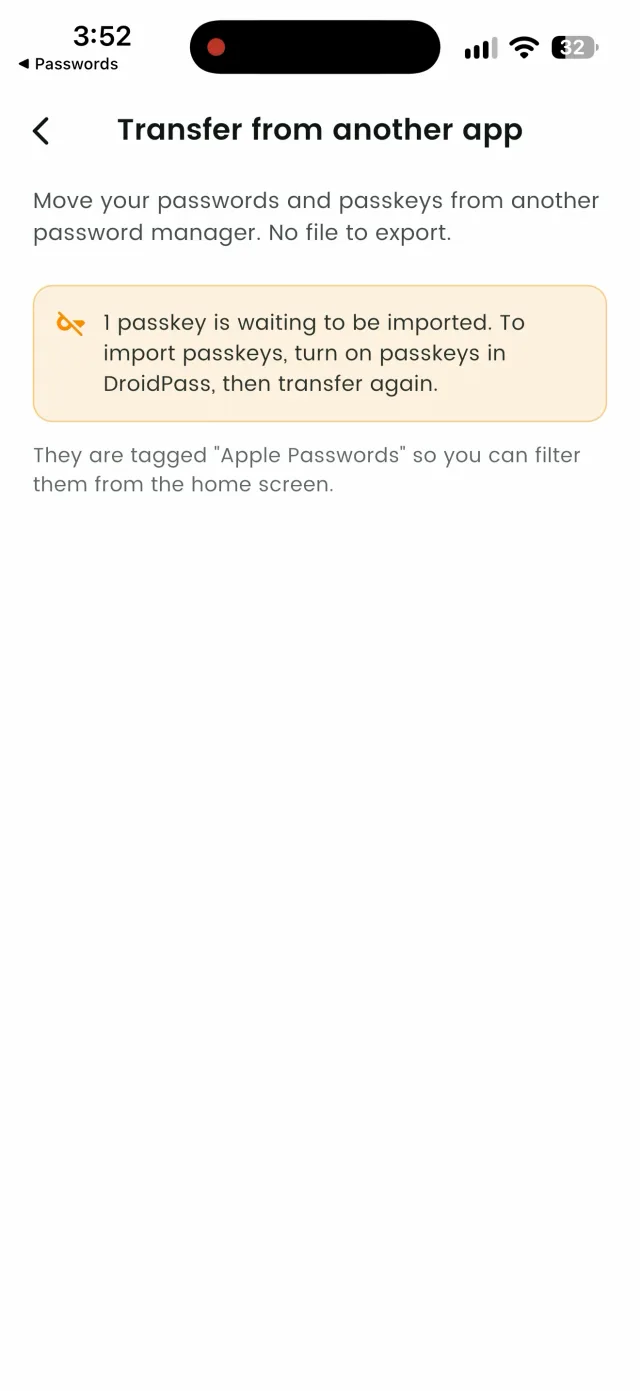
Do this first or you will be doing the transfer twice. If passkeys are not switched on in DroidPass, Apple still hands them over but DroidPass cannot accept them, and you are told they are waiting and to transfer again. Passwords are unaffected — it is only passkeys that need the switch.
- Open the menu in DroidPass and tap Passkeys.
- Tap Turn on passkeys. DroidPass creates a Secret Key that encrypts them and never leaves your devices.
- Tap Save Emergency Kit PDF, put it somewhere safe, then tap I've saved it.
Do not skip the PDF. That Secret Key is what lets you use your passkeys on another device, or get back in if you forget your Master PIN — and DroidPass cannot recover it for you. A password manager that could would be able to read your passkeys itself.
On iPhone or iPad
You need iOS 26 or newer. Everything happens in Apple's own app until the last two screens.
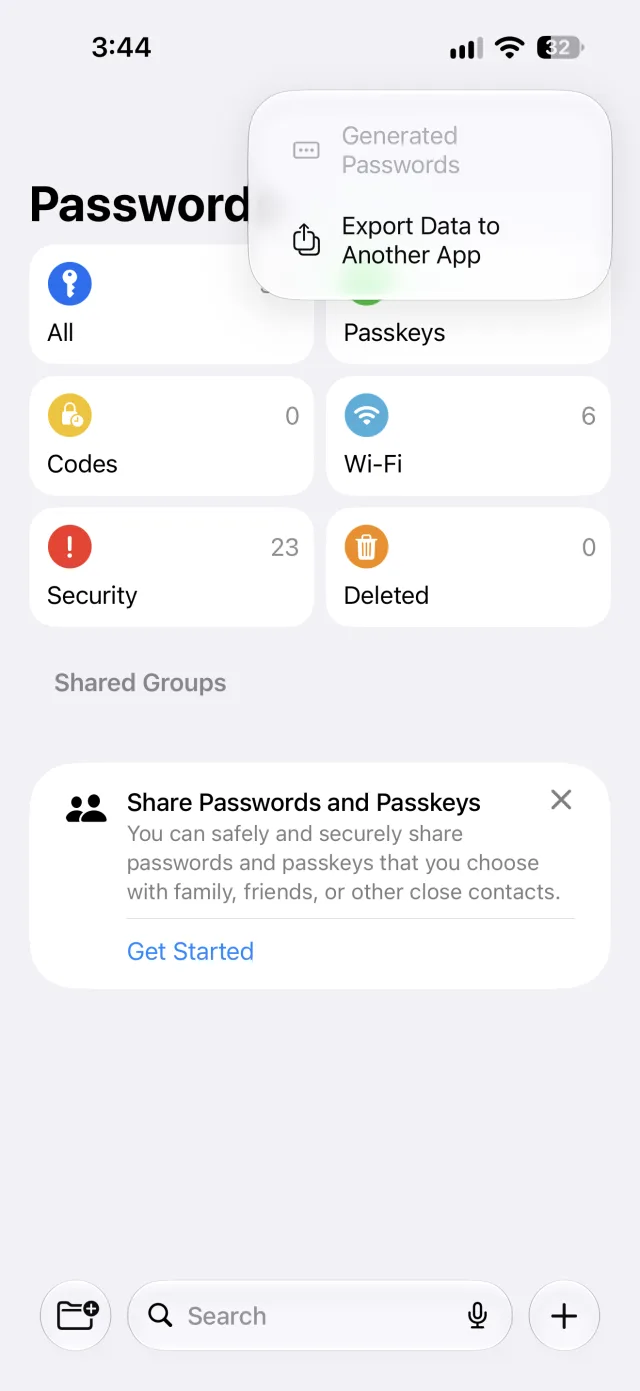
- Open the Passwords app and authenticate with Face ID or Touch ID.
- Tap the … button at the top and choose Export Data to Another App.
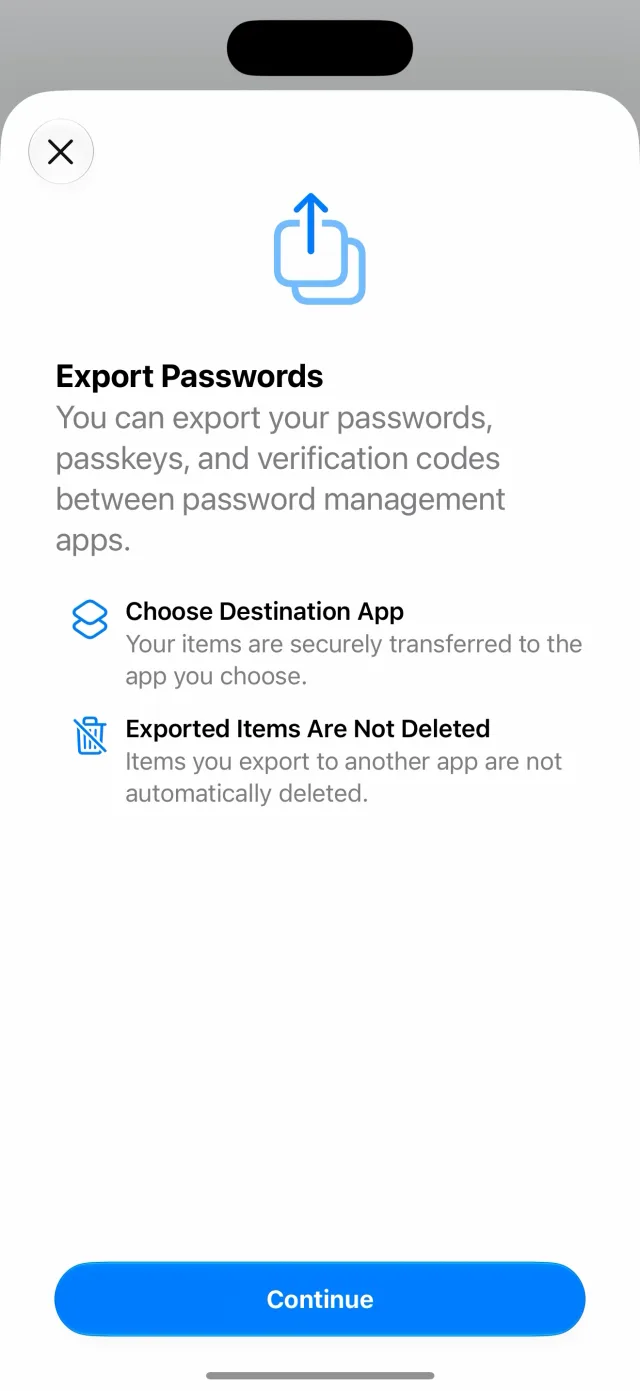
Apple explains what is about to happen. Note the second line — your items are not deleted from Apple. This is a copy, not a move.
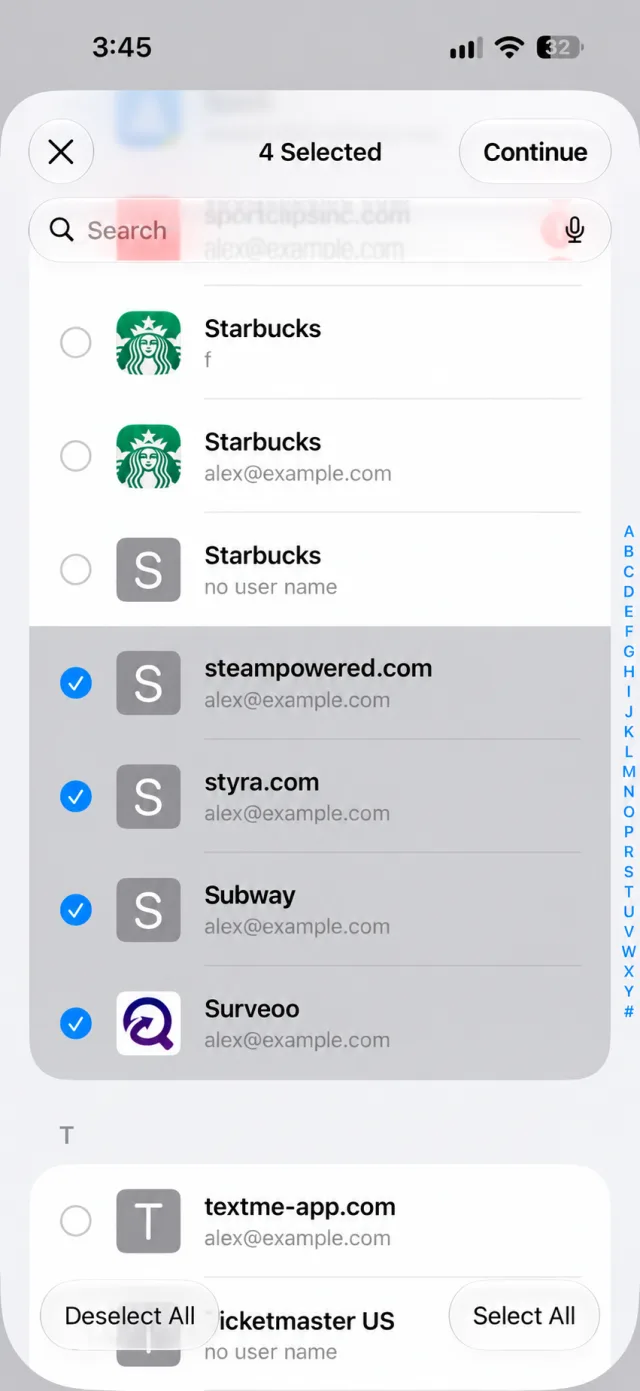
- Choose what to move. Select All takes everything.
- Pick DroidPass as the destination and confirm.
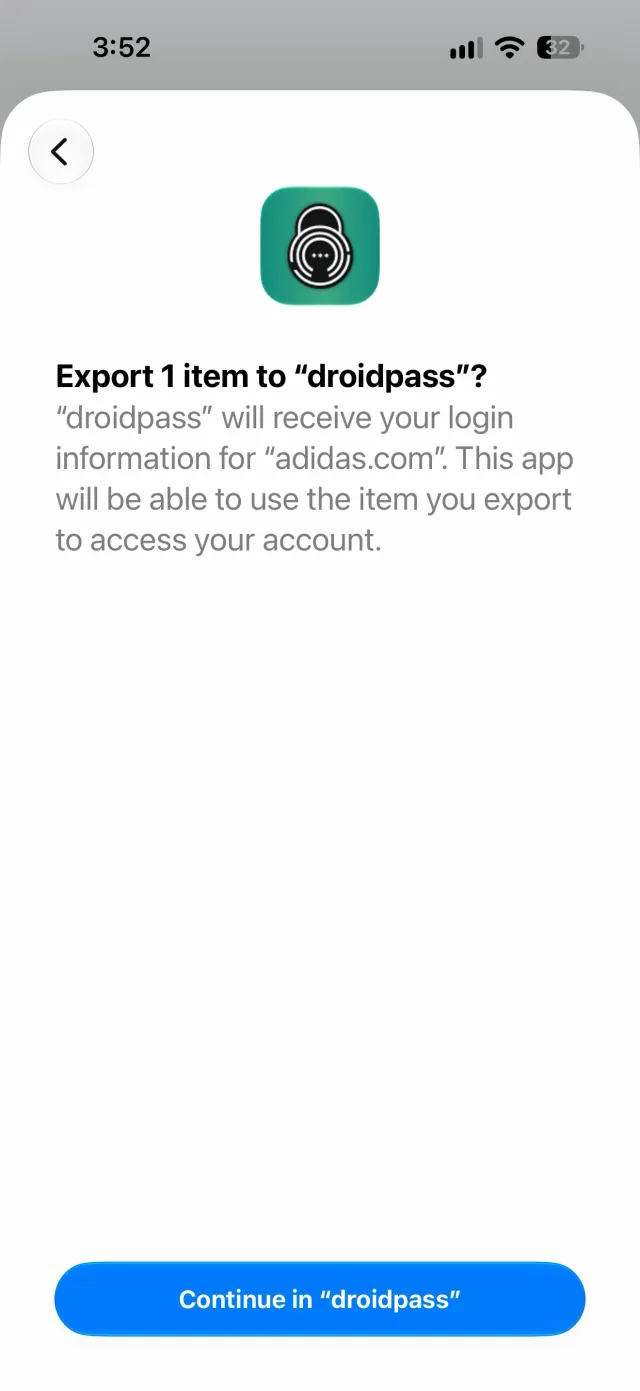
- DroidPass opens by itself and asks for your Master PIN. Everything is encrypted with it as it is written.

Then you are done. The entries are tagged Apple Passwords, so you can filter by source from the home screen and see exactly what arrived.
Your passkeys come too
This is the part that was impossible until recently, and the part with a prerequisite. A passkey used to be locked to whichever app created it — there was no supported way to move one. Credential exchange changed that, so the passkeys Apple holds for you can arrive alongside the passwords and then sync to your other devices — provided you turned passkeys on in DroidPass first, as above. More on how passkeys work in DroidPass.
On a Mac
The Mac Passwords app exports a file rather than handing data to another app: File → Export → Passwords, which writes a .csv. DroidPass runs on Apple Silicon Macs as an iPad app, so you can import it there, or move it to your phone. Either way the warning below applies.
There is no CSV export on iPhone
Worth knowing before you go looking: the … menu in the Passwords app offers Generated Passwords and Export Data to Another App, and nothing else. Apple does not give you a file on iOS — the direct transfer is the only way out, which is why iOS 26 is a hard requirement rather than a nice-to-have.
If you genuinely need a file, make it on a Mac with File → Export → Passwords, import it through Settings → Import Passwords → Apple, and delete it afterwards — it holds every password you own as readable text.
What changes, and what does not
Transferring copies your logins into DroidPass. It does not empty Apple Passwords, and it does not turn AutoFill off. Once you have checked everything arrived, you can switch DroidPass on under Settings → General → AutoFill & Passwords and clear out the old entries at your own pace.