If your passwords live in Google Password Manager — saved by Chrome or by Android itself — this is the easiest move of all. Google was one of the launch partners for Android's transfer feature, so your logins and passkeys come across directly, with no file to export and nothing left in your Downloads folder.
On Android: DroidPass starts it
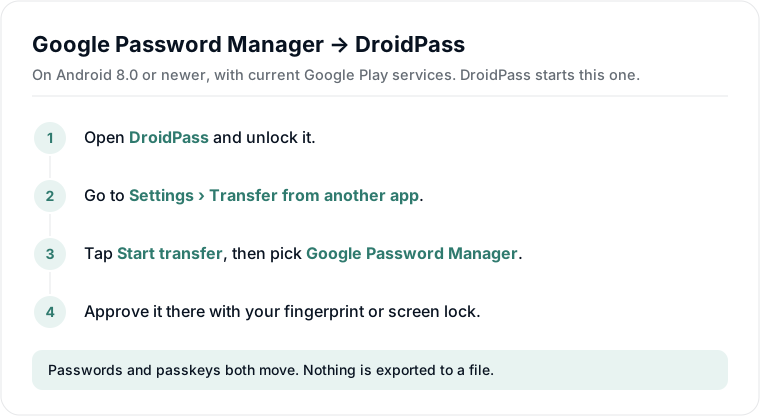
Google switched the transfer tool on in Android on 10 September 2026, and Google Password Manager supports it. This is the route to use.
- Open DroidPass and unlock with your fingerprint, face or Master PIN.
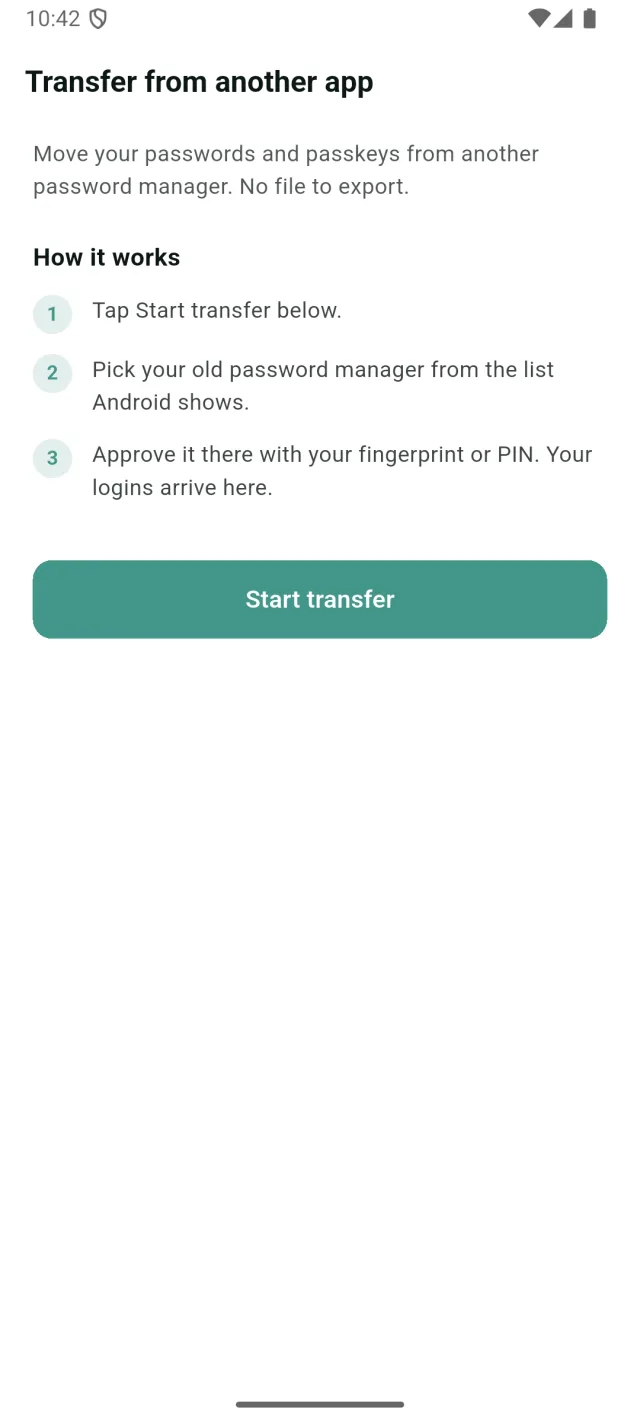
- Go to Settings → Transfer from another app and tap Start transfer.
- Pick Google Password Manager from the list Android shows.
- Approve it there with your fingerprint or screen lock. Your logins arrive in DroidPass, encrypted with your Master PIN as they are written.
You need Android 8.0 or newer and up-to-date Google Play services. If the option is missing, that is usually the reason — Google shipped it in Play services 26.21.
Passkeys come too
Passkeys Google is holding for you move across with the passwords, which is the part that used to be impossible: before credential exchange, a passkey simply could not leave the app that created it. Once they are in DroidPass they sync to your other devices — how passkeys work here.
One thing to do first, though: turn passkeys on in DroidPass before you transfer — open the menu, tap Passkeys, then Turn on passkeys and save the Emergency Kit PDF it gives you. Without that, your passwords still arrive but the passkeys are held back and you have to run the transfer a second time.
On iPhone, it is the other way round
If you are moving from Google Password Manager on an iPhone, you start in the Google app and pick DroidPass as the destination — on iOS only the app you are leaving can begin a transfer, and it needs iOS 26. See how instant transfer works.
The CSV route, if you need it
On an older Android version, or if the option does not appear, you can still export a file:
- Go to passwords.google.com and sign in, or open Chrome → Settings → Google Password Manager.
- Open Settings there and choose Export passwords. Google asks you to confirm it is you.
- In DroidPass, open Settings → Import Passwords → Google and select the file.
Then delete the file. A Google export is every password you own in plain text. Remove it from Downloads and empty the trash as soon as the import finishes. The direct transfer above exists precisely so this step never has to happen.
What Chrome keeps that a password manager does not
Passwords saved in Chrome are tied to your browser profile and fill mostly in Chrome. Moving them to DroidPass means they also fill in other apps — banking, email, anything with a login form — and travel to a different phone without carrying a browser profile with them.