You need your card number at the checkout, but your wallet is in another room. So you type it into a note, snap a photo of the card, or message it to yourself. Almost everyone has done it — and it's one of the easiest ways to hand your card to a thief. Here's where card details leak from, what a safe place actually looks like, and how to store credit and debit cards in an encrypted vault in under a minute.
Why the usual places are risky
The problem with the "quick" options isn't that they're lazy — it's that none of them were designed to hold payment data.
- Notes apps. Most notes are stored in plain text, synced to the cloud unencrypted, indexed by search, and readable by anyone who picks up your unlocked phone. A single locked note is better, but it's easy to forget the lock, and notes rarely auto-lock.
- Photos of your card. A photo of the front and back is the full set: number, expiry, CVV, name. Photos sync to every device, appear in "Recents", get backed up to cloud albums, and are one accidental share away from a group chat.
- Messaging yourself. Chat apps keep messages on the server, on every linked device, and in notification previews. Anyone with a moment on your laptop can scroll up and find it.
- Browser autofill. Convenient, but tied to the browser profile — if someone is signed into your browser, or a malicious extension is installed, your saved cards go with it.
- Email drafts and spreadsheets. Same story: unencrypted, searchable, and synced everywhere.
Card numbers are also a favourite target of info-stealer malware precisely because people keep them in predictable places. Storing them somewhere designed for secrets removes the easy win.
What a safe place for card details needs
If you want a checklist, a secure card store should tick every one of these boxes:
- Encryption at rest. The card data must be encrypted on your device with a strong standard such as AES-256 — not just hidden behind a screen lock.
- Encrypted before it leaves your phone. Encryption should happen on the device, with the key derived from a secret you choose, so what is stored or synced is ciphertext rather than readable card numbers.
- Biometric unlock. Face ID, Touch ID or fingerprint, so opening the vault is quick but still yours.
- Auto-lock. The vault should close itself after a short period so an unlocked phone doesn't mean an open card store.
- Screenshot prevention. On Android, the app should block screenshots and screen recording of sensitive screens.
- Offline access. You should be able to reach your cards at a checkout with no signal — without your data living unencrypted on a server to make that possible.
How DroidPass stores credit and debit cards
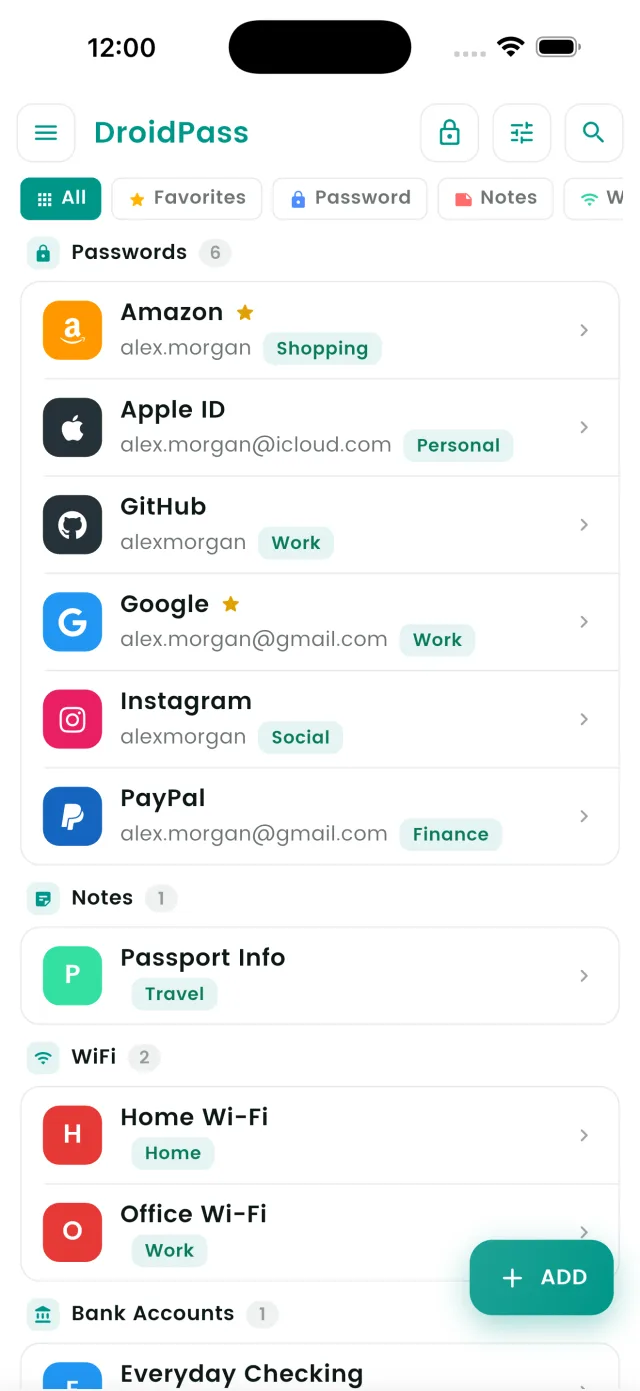
DroidPass treats cards as a dedicated item type inside its encrypted password vault, not as a note with a card number pasted into it. Each card entry holds the card number, expiry date, CVV, cardholder name and free-form notes (for example, the bank's phone number or which subscriptions charge that card).
- Same protection as your passwords. Cards are encrypted with AES-256 on your device before they are stored or synced.
- Quick copy. Tap a field to copy the number, expiry or CVV into a checkout form without retyping.
- Organised. Add tags, mark a card as a favourite, and find it with search or smart filters.
- Synced across devices. Add a card on your phone and it's on your iPad, Android tablet or Mac too — encrypted before it ever leaves the device.
- Locked down. Biometric unlock, an auto-lock timer, and screenshot prevention on Android.
- Works offline. Your vault is available without an internet connection.
How to add a card to DroidPass
- Open DroidPass and unlock the vault with Face ID, Touch ID, fingerprint or your Master PIN.
- Tap the + button and choose Card as the item type.
- Enter the card name (for example "Personal Visa"), the number, expiry date, CVV and cardholder name.
- Optionally add notes — the bank's hotline number is a good one — and a tag such as Finance.
- Save. The entry is encrypted immediately and synced to your other devices if you use DroidPass Pro backup and sync.
The next time you're at a checkout, unlock DroidPass, open the card, and copy each field into the payment form. Nothing is typed into a note, nothing is left in your photos.
What not to store — even in a vault
A vault makes card data safe to keep, but a few things are best kept nowhere at all:
- Your card PIN next to the card. If you must save it, keep it in a separate entry with a non-obvious name.
- Full card details in a shared account. If several people use the same vault login, use a separate account for personal cards.
- Cards you no longer use. Delete expired or cancelled cards so an old number can't be confused for a live one.
If your card details have already leaked
If you suspect a number is out there — a lost phone with a card photo on it, an old note in a shared account, or a merchant breach — act quickly:
- Freeze or lock the card in your banking app straight away; most banks let you do this instantly.
- Call your bank to report the exposure and request a replacement card with a new number.
- Check recent transactions and dispute anything you don't recognise.
- Update subscriptions that charged the old card once the new one arrives — your notes field in DroidPass is a handy place to list them.
- Delete the old copies — the photo, the note, the message — and store the new card in your vault instead.
Keep your cards where they belong
One encrypted vault for passwords, cards, Wi-Fi and notes — on iPhone, iPad, Android and Mac.
Download for iPhone Download for Android Download for Mac