Chrome on a computer is the one source that cannot hand your passwords over directly. There is no transfer button on desktop — the credential exchange feature lives on phones. So this move goes through a file, and the important part is what you do with that file afterwards.
First, check whether you need this at all
If Chrome syncs your passwords to your Google Account — which it does by default when you are signed in — then they are already in Google Password Manager, and on an Android phone you can pull them across in four taps with no file at all. That is the better route by some distance: transferring from Google Password Manager.
Use the steps below when sync is off, when the passwords are saved only to that computer's Chrome profile, or when you simply prefer to do it at a desk.
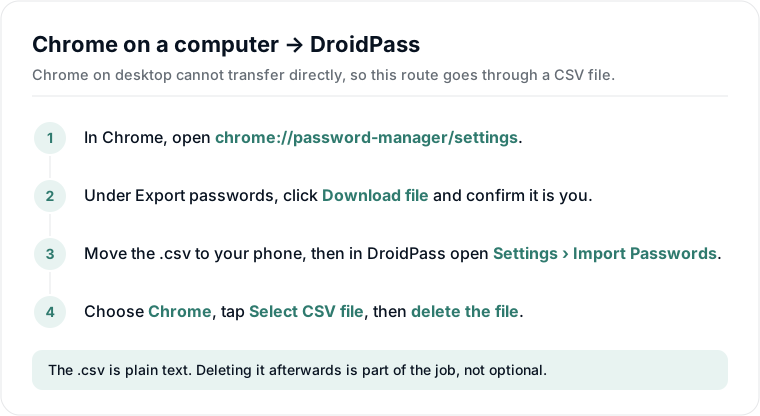
Export from Chrome
- In Chrome, open chrome://password-manager/settings — or Settings, then Autofill and passwords, then Google Password Manager, then Settings.
- Next to Export passwords, click Download file.
- Chrome asks for your computer's account password to prove it is you, then saves a .csv.
Getting the file to your phone
This file is every password you own in plain text, so how it travels matters. AirDrop or a USB cable are the safe options. Emailing it to yourself is the one to avoid — it leaves a readable copy sitting in two mailboxes indefinitely, and you cannot reliably delete it from either.
Import into DroidPass
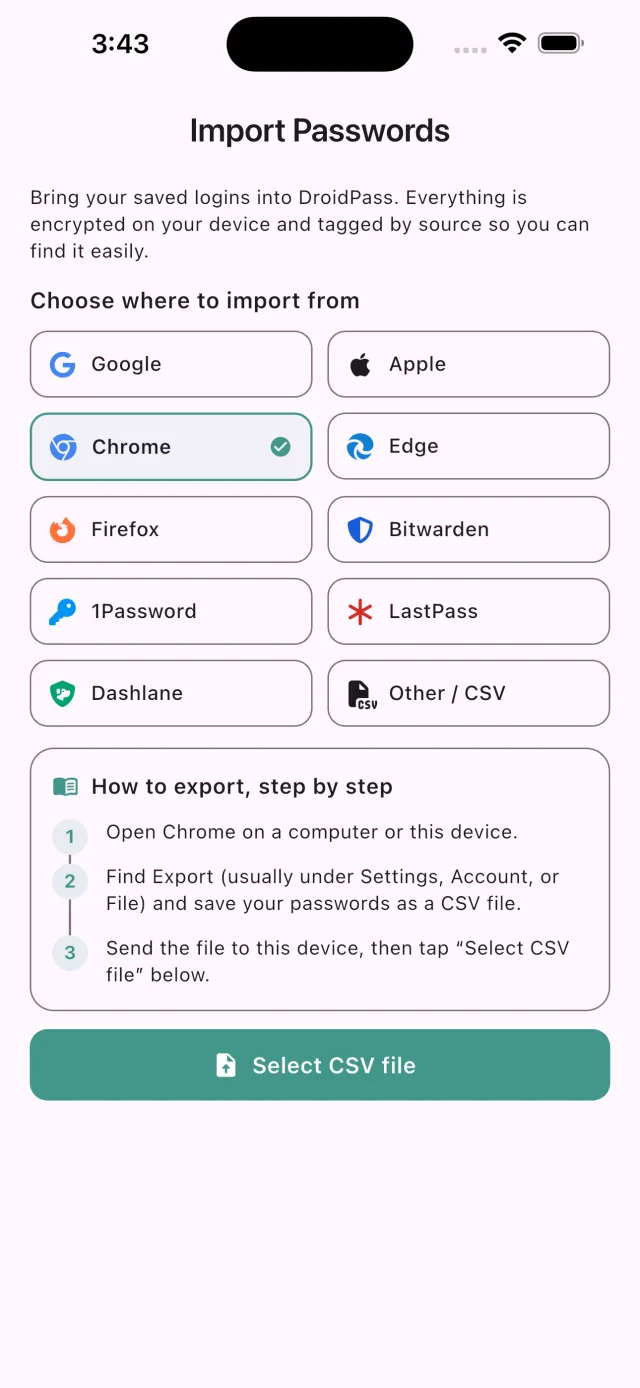
- Open DroidPass and unlock it.
- Go to Settings → Import Passwords and choose Chrome.
- Tap Select CSV file and pick the file you moved across.
DroidPass shows you what it found before writing anything, skips duplicates, and tags the entries by source so you can see later where they came from.
Now delete the file
Delete the .csv from the computer, from your phone, and from the trash on both. If it went through a cloud folder, delete it there too — and check that service's own trash, which usually keeps deleted files for another 30 days.
This is the reason direct transfer was built, and the reason to prefer it wherever it is available. A file that never exists cannot be left behind.
Why can't Chrome just transfer them?
Credential exchange is built into Android and iOS, not into desktop browsers. Chrome on Windows, macOS and Linux has no equivalent, so a file is the only route it offers. The same is true of Edge and Firefox on desktop. DroidPass imports all three.