On most Android phones, the passwords you save are kept in Google Password Manager, tied to your Google account. Chrome on Android and Chrome on a computer use the same list. The quickest way in: open Settings, search for Password Manager, and tap a site. Below are the exact steps for each place, plus Samsung phones and how to export the list.
On your Android phone (Settings)
- Open the Settings app.
- Search for Password Manager and open it.
- Tap the site or app you want.
- Unlock with your fingerprint, face or screen lock.
- Tap the eye icon to show the password, or the copy icon to copy it.
Menu names vary a little between phone makers and Android versions, which is why searching Settings is the most reliable route. You can also install the Google Password Manager shortcut from its screen, so it sits on your home screen like an app.
In Chrome on Android
These steps come from Google’s Chrome help:
- Open Chrome and tap the three-dot More menu, then Settings.
- Tap Autofill and passwords, then Google Password Manager.
- Tap the saved site, then Show password. From the same screen you can Edit or Delete it.
In Chrome on a computer
- Click the three-dot More menu at the top right.
- Choose Passwords and autofill, then Google Password Manager.
- Click a site, then the eye icon to show the password. Your computer may ask for its own password first.
From any browser, you can also sign in at passwords.google.com to see the passwords saved to your Google account.
On Samsung Galaxy phones
Galaxy phones can save passwords in two places: Google Password Manager (above) and Samsung Pass, which Samsung Internet and some apps use. If a password is missing from Google’s list, open Settings, search for Samsung Pass, and look through its saved sign-in info. You will be asked to confirm with your fingerprint or PIN.
Can’t find a password?
- Wrong Google account. If you have more than one, Password Manager shows the account at the top. Switch accounts and look again.
- Saved in another app. Samsung Pass, Firefox, Microsoft Edge and other password managers each keep their own list.
- Never saved. If you tapped “Never” when asked to save, the site is listed under declined sites in the Password Manager settings, with no password.
- Saved on a work profile. Work profiles keep a separate list.
How to export your saved passwords
- Open Google Password Manager using any of the routes above.
- Tap the gear-shaped Settings icon.
- Tap Export passwords and confirm with your screen lock.
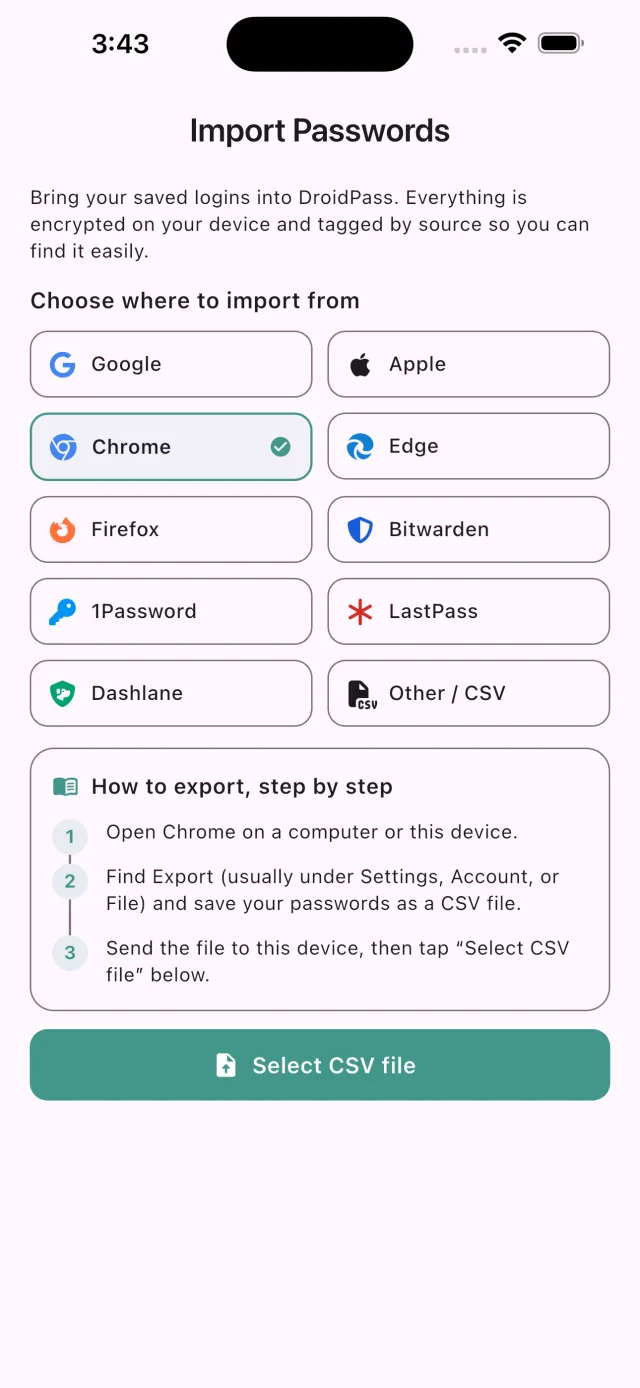
The export is a plain CSV file: every password in it is readable by anyone who opens the file. Import it where you need it, then delete it, including from Downloads and any cloud folder it synced to. If you are moving to DroidPass, you can skip the file altogether: see how to move passwords from Google Password Manager or from Chrome on a computer.
Is it safe to keep passwords in Google Password Manager?
For many people it is a reasonable choice: it is free, built in, and protected by your Google account and screen lock. Turn on 2-Step Verification for the Google account, because anyone who gets into that account can reach the passwords. Its limits are practical: it is tied to Google and Chrome, it holds passwords and passkeys but not cards with notes, Wi-Fi details or 2FA codes in one place, and it is less convenient on an iPhone.
If you want everything in one app on both Android and iPhone, DroidPass keeps passwords, passkeys, 2FA codes, cards, Wi-Fi networks and secure notes in an AES-256 encrypted vault, fills them in apps and browsers, and unlocks with your Master PIN, or with your fingerprint or face on Pro.
All your passwords in one app, on Android and iPhone
DroidPass is free to start, with autofill, passkeys and a built-in 2FA authenticator.
Download for Android Download for iPhoneFrequently asked questions
Where are passwords saved on Android?
Usually in Google Password Manager, which is linked to your Google account and shared with Chrome. Samsung phones may also keep some in Samsung Pass, and other browsers or password manager apps keep their own lists.
How do I see my saved passwords on Android?
Open Settings, search for Password Manager, tap the site, unlock with your fingerprint or screen lock, then tap the eye icon to show the password.
How do I see saved passwords in Chrome?
On Android, tap the three-dot menu, then Settings, Autofill and passwords, Google Password Manager. On a computer, click the three-dot menu, then Passwords and autofill, Google Password Manager. Pick a site and tap Show password or the eye icon.
How do I export passwords from Chrome or Google Password Manager?
Open Google Password Manager, tap the gear-shaped Settings icon, then Export passwords. The result is an unencrypted CSV file, so delete it as soon as you have imported it elsewhere.