To lock a note on iPhone, open it in the Notes app, tap the ⋯ button and choose Lock. You unlock it with Face ID, Touch ID, your iPhone passcode or a separate notes password. On Android it depends on the phone: Samsung Notes can lock notes, Google Keep cannot. Here are the steps, the catches, and what to use if you want locked notes on both.
How to lock a note on iPhone
These steps follow Apple’s instructions:
- Open the note in the Notes app.
- Tap the ⋯ (More) button.
- Tap Lock.
- The first time, choose how to unlock: your iPhone passcode or a separate notes password with a hint. Turn on Face ID or Touch ID if offered.
- The note stays open until you leave it. Tap the lock icon at the top to hide it straight away.
You can change the method later in Settings → Apps → Notes → Password. Using your iPhone passcode requires iCloud Keychain to be on.
Notes you cannot lock on iPhone
- Notes with tags
- Notes that contain PDFs, audio, video, or Keynote, Pages or Numbers files
- Notes you share with other people
- Notes in accounts that sync over IMAP, such as Gmail, Yahoo or Hotmail
If you forget your notes password
Apple cannot recover it. Resetting the password in Settings lets you lock new notes, but notes locked with the old password stay locked until you enter that old password. If you choose a separate notes password, store it somewhere safe, such as a password manager.
How to lock notes on Android
Samsung Notes
- Open the note.
- Tap the More options menu (three dots), then Lock.
- Follow the prompts to create a notes password. You can add fingerprint or face unlock.
Samsung requires a Samsung account to lock notes. To change the password later, open Samsung Notes settings and look for the note lock option.
Google Keep and other phones
Google Keep has no lock for single notes. Your options are to hide the whole app (for example in Android’s Private space on Android 15 and later, or Samsung’s Secure Folder), or to keep private notes in an app that locks them.
A notes app with a password on both iPhone and Android
Apple Notes locks only on Apple devices, and Samsung Notes only on Galaxy phones. If you move between platforms, or the note holds something like a PIN, a recovery code or a door code, a password manager is a better home for it. DroidPass has secure notes with Markdown, checklists and templates, stored in the same AES-256 encrypted vault as your passwords. The whole vault is locked, so every note is locked, and it opens with your Master PIN, or with your fingerprint or face on Pro, on Android and iPhone. Notes sync between both.
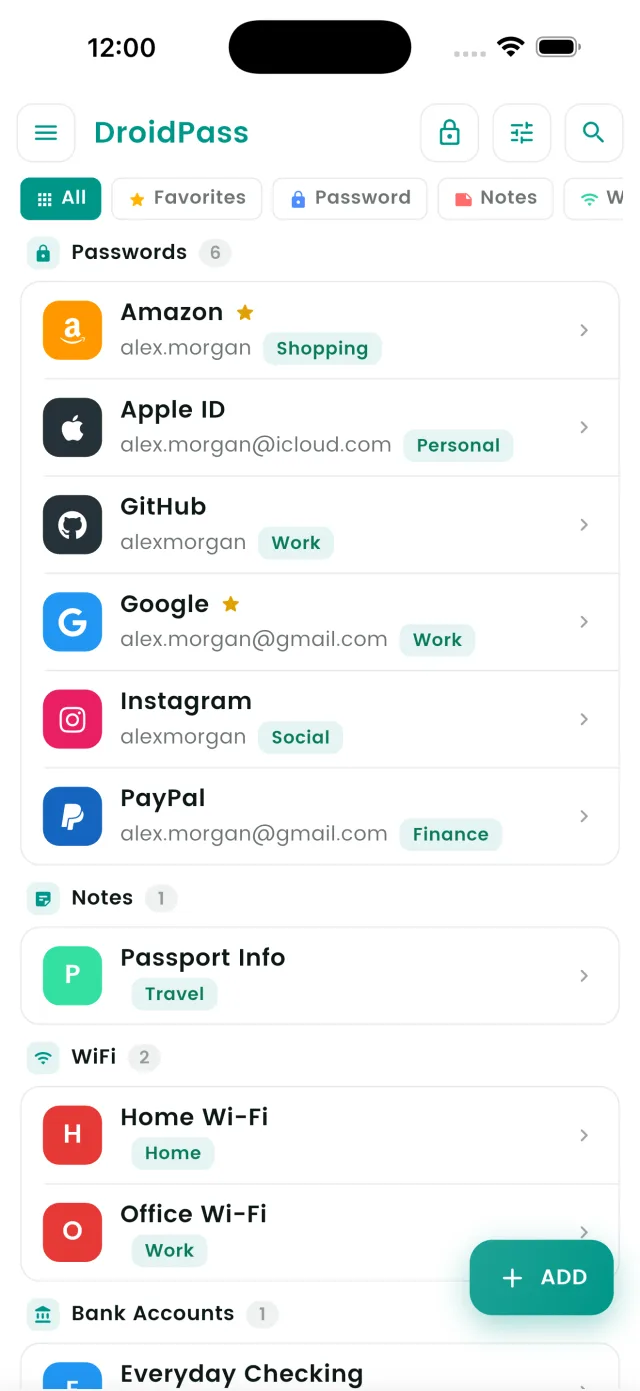
The free plan holds six items in total. Pro removes the limit. For what to keep where, see the encrypted vault.
Locked notes on iPhone and Android
Keep private notes next to your passwords in one encrypted vault.
Download for iPhone Download for AndroidFrequently asked questions
How do I lock notes on my iPhone?
Open the note in Notes, tap the ⋯ button, then Lock. The first time, choose your iPhone passcode or a separate notes password. Tap the lock icon to hide the note right away.
Why can’t I lock a note on my iPhone?
Notes with tags, shared notes, notes with PDFs, audio, video or iWork files, and notes in Gmail, Yahoo or other IMAP accounts cannot be locked. Move the note to iCloud or On My iPhone, or remove the tag or attachment.
Can you lock notes in Google Keep?
No. Google Keep cannot lock individual notes. Hide the app in Private space on Android 15 and later, or keep private notes in an app that locks them.
What is a good notes app with a password for iPhone and Android?
A password manager with secure notes works on both. In DroidPass, notes sit in an AES-256 encrypted vault that opens with your Master PIN (or fingerprint or face on Pro), and they sync between iPhone and Android.