Your iPhone just said "This password has appeared in a data leak." Chrome flagged a compromised password. Or you typed your email into Have I Been Pwned and got a wall of red. Take a breath — a leaked password is fixable, and most of the damage is preventable if you act in the right order. Here is exactly what to do, step by step.
First, understand what actually happened
A data breach means a company you have an account with was hacked and its user database was copied. Those databases get sold and traded, and the passwords in them are eventually cracked. The real danger isn't the one breached site — it's every other site where you used the same password. Attackers run automated credential stuffing attacks: they take the leaked email + password pair and try it on Gmail, Amazon, PayPal, Netflix, your bank — thousands of sites, in minutes. If you reused that password anywhere, those accounts are at risk too.
Step 1: Confirm the leak and find out which accounts are affected
Go to haveibeenpwned.com and enter your email address. It lists every known breach that included your address, with the date and what kind of data was exposed (passwords, phone numbers, addresses, card details). Check every email address you use, including old ones.
- iPhone / iPad: Settings → Passwords → Security Recommendations lists passwords that appeared in known leaks.
- Chrome: Google Password Manager → Checkup flags compromised, reused and weak passwords.
Write down which sites are affected. That's your to-do list for the next step.
Step 2: Change the leaked password — then everywhere you reused it
Change the password on the breached site first. Then, and this is the part most people skip, change it on every other site where you used that same password or a close variation (adding "1" or "!" doesn't count — cracking tools try those automatically).
Each new password should be long, random and unique to that one site. Don't
invent them yourself; use a password generator so every account
gets something like Tq7!vLm2#pXw9Rz that no leak elsewhere can unlock. Not sure if
an existing password is good enough? Run it through the
password strength checker. For the full rules, read our
guide on how to create a strong password.
Prioritize in this order: email first (it's the recovery key to everything else), then banking and payment apps, then shopping accounts with saved cards, then social media, then everything else.
Step 3: Turn on two-factor authentication (2FA)
With 2FA, a leaked password alone isn't enough to get in — the attacker also needs a 6-digit code that changes every 30 seconds. Enable it on the breached account and on every important account you own. Prefer an authenticator app over SMS codes; SMS can be intercepted through SIM swapping.
You don't need yet another app for this. DroidPass has a built-in authenticator that generates 2FA codes right next to the password they protect, in the same encrypted vault. Scan the QR code the site shows you and you're done. Here's how it works.
Step 4: Check that the attacker didn't leave a back door
If someone already got into an account, changing the password doesn't always kick them out. On each important account (especially email), check:
- Recovery email and phone number — make sure they're still yours.
- Active sessions / signed-in devices — sign out everything you don't recognize.
- Email forwarding rules and filters — attackers add silent forwarding to keep reading your mail.
- Connected apps and API access — revoke anything unfamiliar.
- Backup codes — regenerate them so any copies the attacker took are useless.
Step 5: If payment data leaked, protect your money
If the breach included card numbers or bank details, contact your bank, freeze or replace the card, and watch your statements closely for the next few months. Many banks let you lock a card instantly from their app. Consider a credit freeze if personal identifiers (ID numbers, date of birth, address) were exposed — that's the raw material for identity theft.
Step 6: Expect phishing — and don't fall for it
After a breach, criminals know you're a customer of that company and that you're worried. Expect convincing emails like "We detected a breach — verify your account now." Never click a link in one of those emails. Open the site yourself by typing the address or using the official app. A password manager helps here too: DroidPass only autofills on the exact site you saved, so a look-alike domain gets nothing.
Step 7: Make sure this never hurts you again
You can't stop companies from getting breached. You can make sure a breach only ever affects one account:
- One unique, generated password per site. That's the whole game. When each password is unique, a leak is a one-site problem instead of a your-whole-life problem.
- Store them in an encrypted vault, not a notes app, not a spreadsheet, not your browser's sync. DroidPass encrypts everything with AES-256 on your device before it syncs — here's why that matters.
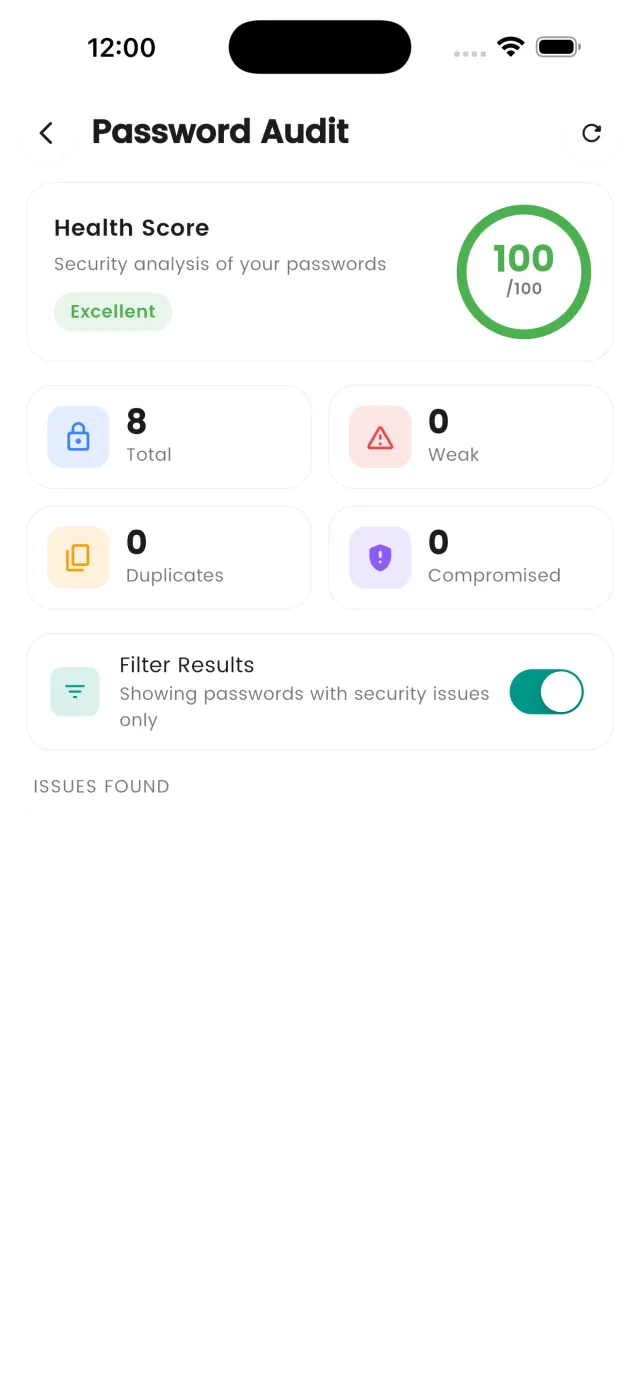
- Run a password audit. DroidPass Pro includes a password & Wi-Fi security audit that scans your vault and flags weak, reused and old passwords, so you can fix the risky ones before a breach exposes them.
- Keep 2FA on for everything that supports it, with the codes stored in the same vault.
- Re-check Have I Been Pwned every few months, or subscribe to its free notifications for your email address.
Fix every reused password in one afternoon
Generate unique passwords, store them encrypted, keep your 2FA codes next to them — free on iPhone, iPad, Android and Mac.
Download for iPhone Download for Android Download for Mac