"What's the Wi-Fi password?" is the most-asked question in every home, office, and holiday rental. Most people answer it by reading a sticker off the router or texting it in plain text. Here's how to find a saved Wi-Fi password on any device, share it without exposing it, and keep every network you use in one encrypted Wi-Fi password manager.
How to find a saved Wi-Fi password
You're already connected, but you need the password for a new laptop or a visiting friend. Every platform can show it — you just need to know where to look.
On iPhone and iPad
- Open Settings → Wi-Fi.
- Tap the (i) next to the network you're connected to (or any network under "Edit" for past networks).
- Tap the Password field and confirm with Face ID or Touch ID.
- The password appears — tap Copy to put it on your clipboard.
On Android
- Open Settings → Network & internet → Internet (or "Connections → Wi-Fi" on Samsung).
- Tap the network you're connected to, then tap Share.
- Unlock with your fingerprint or PIN. Android shows a QR code and, on most devices, the password in plain text underneath it.
On Mac
- Open System Settings → Wi-Fi and click the … button next to a network.
- Choose Copy Password, then authenticate with Touch ID or your Mac password.
- On older macOS versions, open Keychain Access, search for the network name, double-click it, and tick Show password.
How to share a Wi-Fi password safely
Once you've found it, resist the urge to text it. Built-in sharing keeps the password hidden while still letting the other person connect.
- iPhone to iPhone / Mac: When a nearby Apple device (with your contact saved) tries to join your network, a Share Your Wi-Fi Password prompt appears on your unlocked iPhone. Tap Share Password — the password is sent, never displayed.
- Android to anything: Use the Share → QR code screen above. The guest scans it with their camera and joins instantly. iPhones can scan Android's QR code too.
- Between platforms: If your household mixes iPhone and Android, a shared vault item in a cross-platform password manager (more below) is the simplest option.
Why the sticker on the router is a bad idea
A Wi-Fi password is a real credential. Anyone on your network can see your devices, and on a badly configured router they can reach your printer, NAS, smart cameras, and the router admin page. The usual habits are riskier than they look:
- The sticker on the router is visible to every visitor, tradesperson, and video call background.
- Texting or emailing the password leaves it in plain text on two devices and in a cloud inbox forever.
- A note on the fridge or in an unencrypted notes app can't be revoked once photographed.
- Reusing your regular password for Wi-Fi means one leaked network password unlocks your email too.
Use a long, unique passphrase for your Wi-Fi — our guide on how to create a strong password shows exactly how — and hand it out through a secure channel.
Keep every network in a Wi-Fi password manager
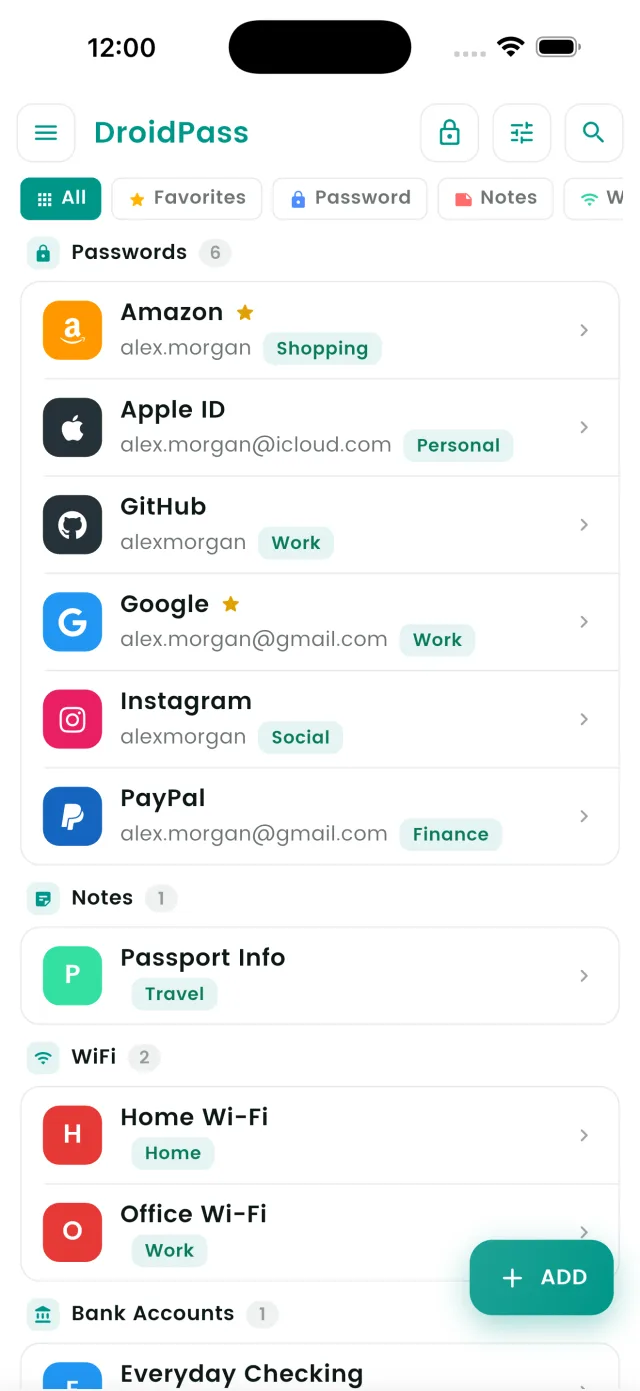
Home, office, your parents' house, the gym, the hotel you visit every quarter — most of us juggle a dozen networks and remember none of them. DroidPass has a dedicated Wi-Fi item type in its encrypted vault, so each network gets its own entry with:
- Network name (SSID) so you can search "Mum's house" instead of "TP-LINK_4F2A".
- Password, hidden by default and copied with one tap.
- Security type (WPA3, WPA2, etc.) for fiddly devices that ask.
- Notes — router login, guest-network name, which room has the best signal.
Everything is protected with AES-256 encryption and a encrypted on your device on your device before anything is uploaded. Entries sync across iPhone, iPad, Android, and Mac, and because DroidPass is an offline password manager, your Wi-Fi passwords are available even when you have no signal — which is exactly when you need them.
DroidPass Pro adds a password and Wi-Fi security audit that flags weak Wi-Fi passwords, so "password123" on the guest network doesn't slip through unnoticed.
Three router settings worth five minutes
- Change the router's admin password. The default "admin / admin" is printed in every manual online. Store the new one in your vault.
- Use WPA3, or WPA2 at minimum. Retire WEP and WPA — both are broken. Most routers made after 2020 support WPA3.
- Turn on a guest network for visitors and smart-home gadgets. Guests get internet; your laptop, NAS, and cameras stay on a separate network.
Store every Wi-Fi password in one encrypted vault
Free password manager for iPhone, iPad, Android, and Mac — with a dedicated Wi-Fi item type.
Download for iPhone Download for Android Download for Mac