AutoFill is what makes a password manager worth having on a Mac. You click into a login form in Safari, pick your account from the menu that appears, and you are signed in without opening another app or typing a single character. This guide shows how to set it up with DroidPass on an Apple silicon Mac, and what to check when the menu does not appear.
What you need first
DroidPass runs on Macs with Apple silicon, meaning an M1 chip or later, on macOS 12.4 or newer. Intel Macs cannot install it. You get it from the Mac App Store, and it is the same app and the same account you use on your iPhone or Android phone. If you already have a vault there, it syncs across as soon as you sign in.
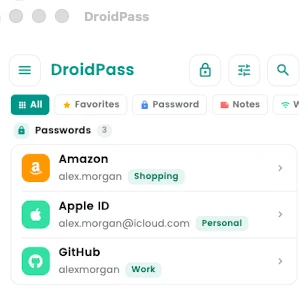
AutoFill can only offer a login it knows about, and it matches logins to websites by their address. So before anything else, check that the logins you care about have their website saved. In the vault below, GitHub is saved with github.com, which is what lets Safari offer it on GitHub's sign-in page.
Step 1: Turn on AutoFill in DroidPass
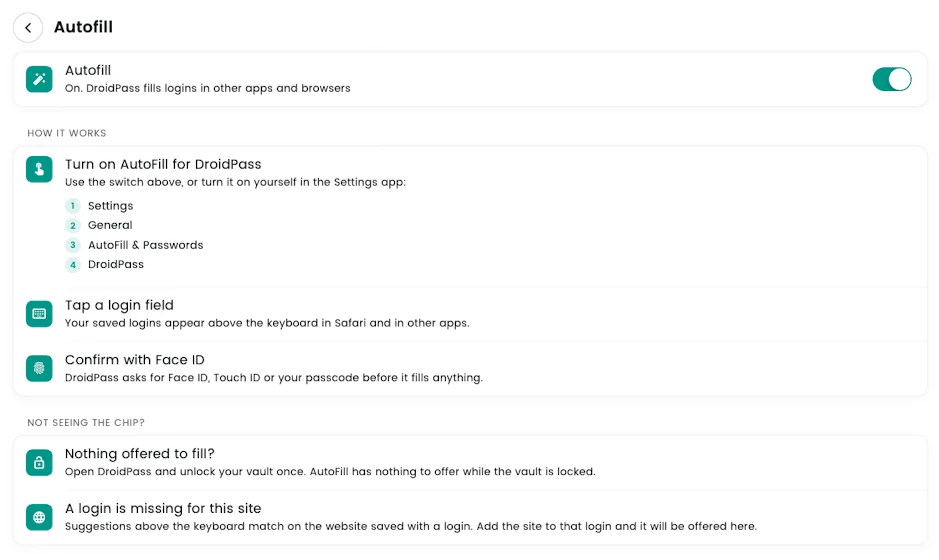
Open DroidPass and unlock your vault. Open the menu, go to Settings, and choose Autofill. Turn on the switch at the top of the screen. Once it is working, the line under the switch reads "On. DroidPass fills logins in other apps and browsers."
Step 2: Allow DroidPass in System Settings
macOS decides which apps are allowed to fill passwords, so DroidPass has to be allowed there as well. If the switch in step 1 did not bring up a prompt, or Safari still does not offer your logins, do it by hand:
- Open System Settings from the Apple menu.
- Click General, then AutoFill & Passwords.
- In the list of apps that can fill passwords, turn on DroidPass.
Apple's own Passwords app sits in the same list. You can leave it on next to DroidPass, and Safari will offer logins from both. On older versions of macOS the same switch is under Passwords, then Password Options, rather than under General.
Step 3: Sign in with AutoFill in Safari
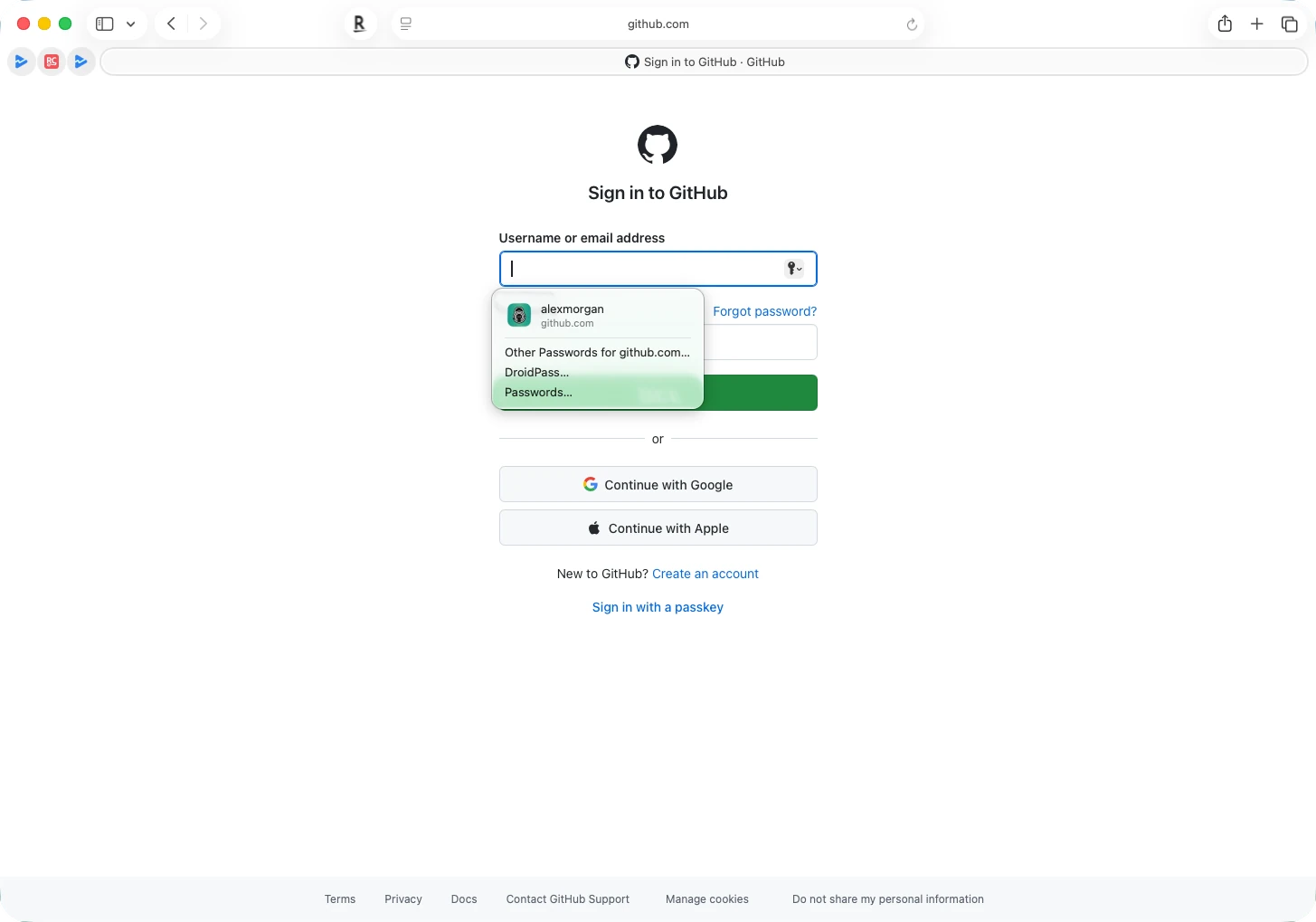
Go to a site where you have a saved login and click the username or email field. Safari opens a small menu under the field with your DroidPass login at the top, showing the username and the website it belongs to.
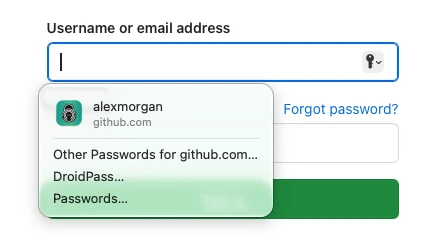
Click the login. Depending on your settings, DroidPass may ask you to confirm with Touch ID or your password, and then it fills in the username and password together. Press Sign in and you are done.
What the other options in the menu do
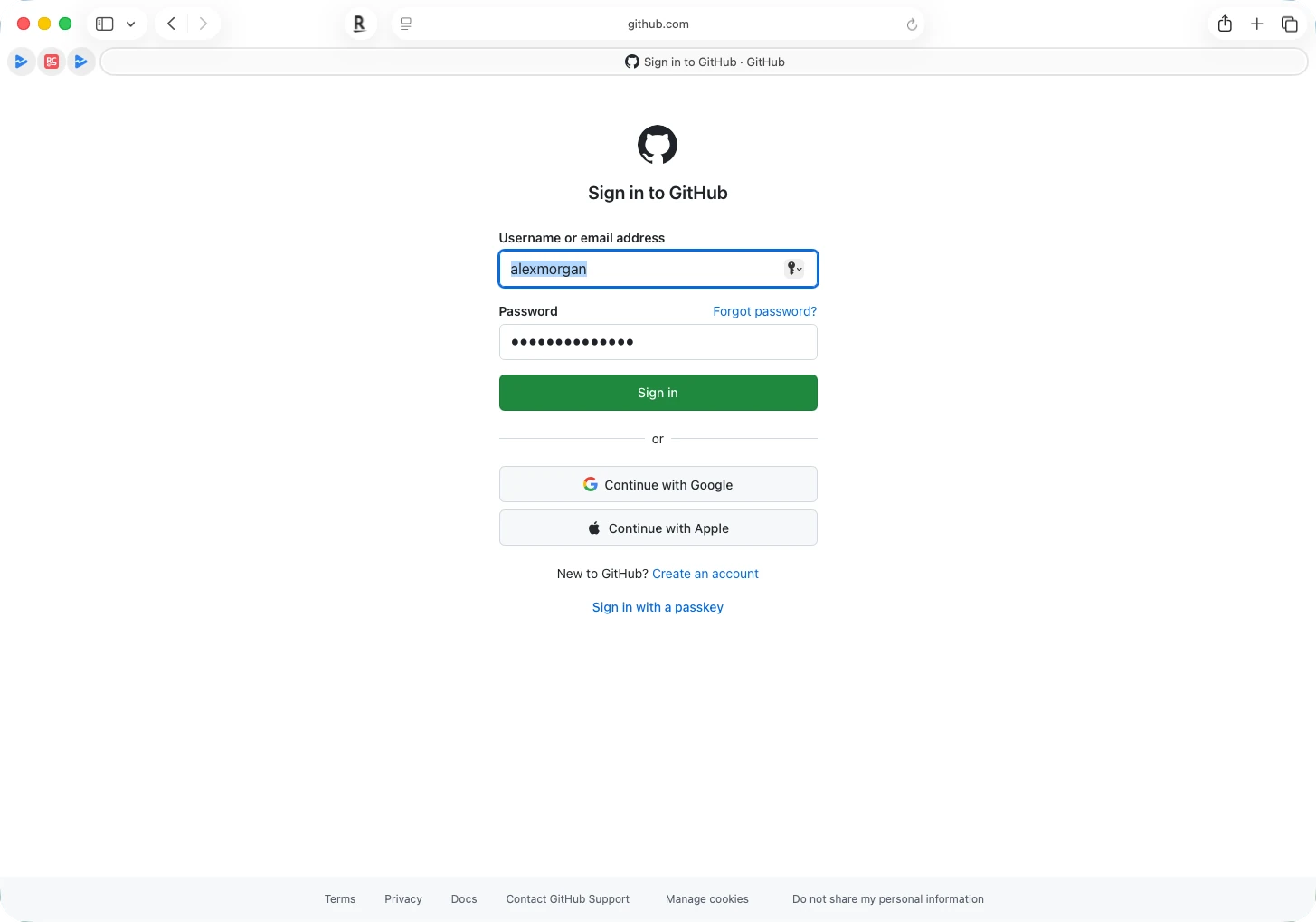
Under your saved login, the menu has three more lines. "Other Passwords for github.com" lists every login saved for that site, which helps if you have more than one account there. "DroidPass" opens your vault so you can search it and pick any login yourself. "Passwords" opens Apple's Passwords app instead.
If AutoFill does not show up
Most of the time it comes down to one of four things.
- The vault is locked. AutoFill has nothing to offer while DroidPass is locked, so open the app and unlock it once.
- The login has no website saved, or a different one. Suggestions follow the website on the login, so edit it in DroidPass and add the site's address.
- DroidPass is not allowed in System Settings. Check General, then AutoFill & Passwords, as in step 2.
- Safari's own AutoFill is off. In Safari, open Settings, choose AutoFill, and make sure "User names and passwords" is ticked.
DroidPass fills through the AutoFill system built into macOS, which is what Safari uses. Chrome and Firefox keep passwords their own way, so they may not offer DroidPass logins.
One vault on your Mac, iPhone and Android phone
iCloud Keychain fills passwords well on a Mac, but it stops at the edge of Apple's devices. If you also carry an Android phone, the logins you save there never reach your Mac. DroidPass keeps one encrypted vault across Mac, iPhone, iPad and Android, so a password you save on your phone in the morning is ready to fill in Safari that afternoon. There is more on that in our guide to using one password manager on Android and iPhone, and in the overview of DroidPass on Mac.
Get DroidPass on your Mac
Free on the Mac App Store for Apple silicon Macs, with the same vault on iPhone and Android.
Download on the Mac App Store Get it on Google Play