Most people no longer stick to one brand. An Android phone and an iPad. A work iPhone and a personal Android. A household where one person is on a Pixel and the other is on an iPhone. Your passwords do not care which logo is on the back of the device. Most password tools do.
Why the built-in managers get awkward
The two password managers almost everyone already has were each built for one platform. iCloud Keychain is made for Apple devices. Google Password Manager is made for Android and Chrome. Both are good inside their own territory. Both get uncomfortable the moment you step outside it.
So people fall into one of three habits. Some keep two half-vaults, a few logins on the iPad and a few more on the Android phone, with neither one complete. Others export everything to a CSV file and import it on the other device, which leaves a plain-text copy of every password they own sitting in a Downloads folder. The rest give up and use the same password in both places.
That last habit is the one that causes real damage. A password you can remember on two phones is also a password that works for whoever finds it in the next breach.
How one vault across two platforms works
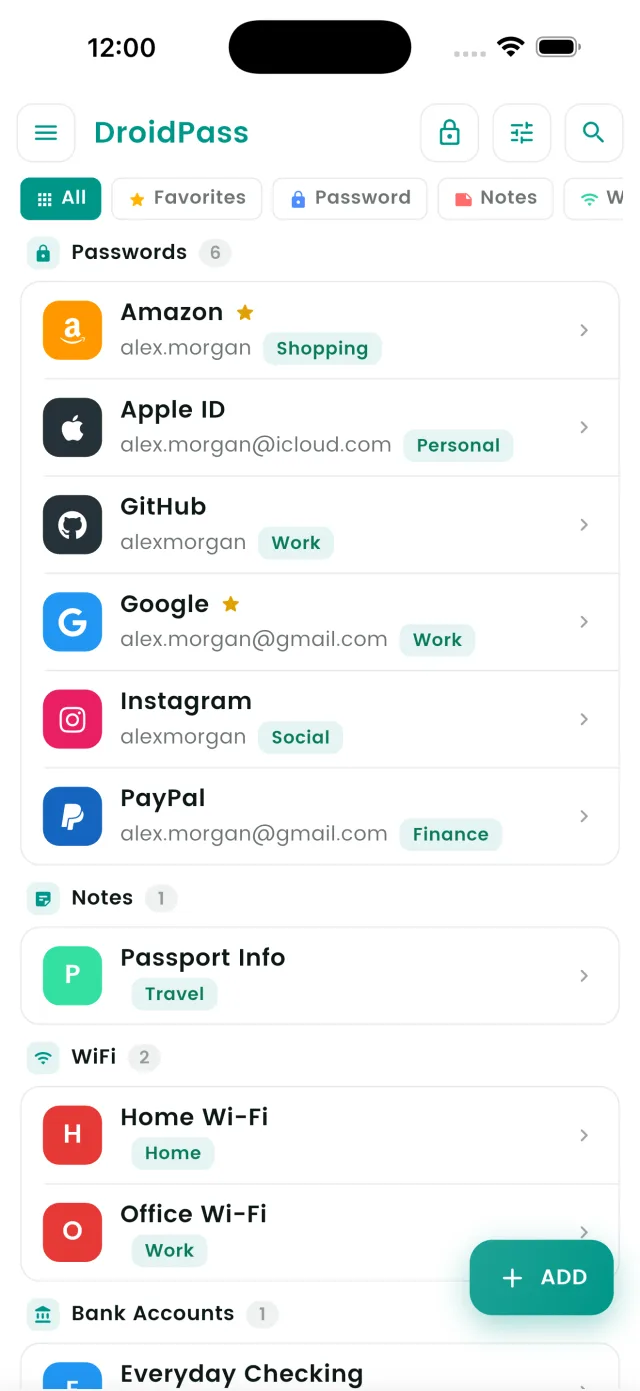
DroidPass is a single account with a single vault. You create the account once, choose a Master PIN, then sign in on whatever else you own. A login you save on your Android phone shows up on your iPad the next time that app opens with a connection.
What matters for security is where the encryption happens. Your records are encrypted on the device itself, using a key derived from your Master PIN, before anything leaves for sync. Only ciphertext travels and only ciphertext is stored. Your Master PIN is not a password you can reset by email, and nobody at DroidPass can look it up.
Two things follow from that, and you should know both before you commit. Your vault opens on any device where you know the Master PIN and nowhere else. And if you forget that PIN, the encrypted records are gone, for you and for us.
Moving from Android to iPhone, or back
Changing phones is usually where the mess starts. The new device offers to set up its own password manager while the old one keeps the originals. With one vault across both platforms the move is dull, which is what you want:
- Open DroidPass on the old phone first and check the vault is up to date and synced.
- Install DroidPass on the new phone from the App Store or Google Play.
- Sign in with the same account and enter your Master PIN.
- Open a few entries you know by heart before you reset the old device.
No CSV file, no plain-text export in cloud storage, nothing to remember to delete afterwards. If you are arriving from a different password manager rather than a different phone, the import guide covers LastPass, 1Password and Bitwarden, and there is a separate walkthrough for Google and Apple.
What each platform actually does today
Here is the state of things in September 2026, including the part that is not symmetrical:
- An encrypted vault for logins, cards, secure notes and Wi-Fi passwords, on Android and iPhone.
- Two-factor codes stored beside the login they belong to, on Android and iPhone.
- Encrypted sync across every device on your account, on Android and iPhone.
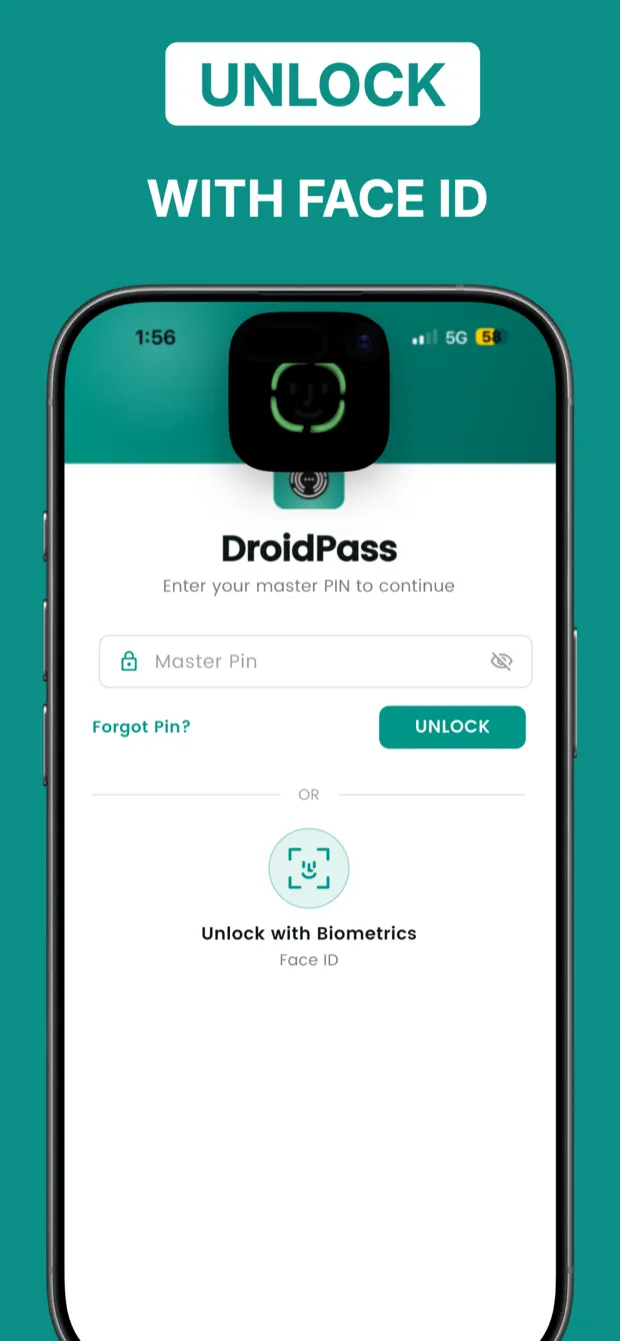
- Biometric unlock, using fingerprint or face on Android and Face ID or Touch ID on iPhone.
- Offline access to everything already saved, with no connection at all, on Android and iPhone.
- Autofill in other apps and browsers, on Android and iPhone since version 1.6.4. The setup differs. On Android you choose DroidPass as the autofill service from inside the app. On iPhone you switch it on once in Settings, under General, then AutoFill and Passwords, because iOS never lets an app enable itself. The setup page has the steps for both.
One practical warning. Subscriptions belong to the store you bought them from. A Pro plan bought on Google Play is managed by Google and one bought on the App Store is managed by Apple, so buying on one does not unlock the other. The free tier behaves the same on both, so you can put the vault on every device you own before deciding whether to pay anywhere.
When the devices belong to different people
Mixed devices are usually a household situation rather than a personal one. One phone is Android, the other is an iPhone, the tablet gets shared, and the Wi-Fi password ends up on a note stuck to the router because that was the only place both people could reach it.
Put the shared things in a vault that opens on both platforms and the note comes off the router without anyone having to change phones. The router password, the streaming accounts, the utility logins. Our guide to Wi-Fi passwords goes through that case specifically.
One vault, both phones
Free to start on either platform, with the same encrypted vault behind both.
Get DroidPass on Google Play Get DroidPass on the App Store