Google Authenticator does one job: it shows six-digit codes. It doesn't store the password that goes with them, it ties your backups to a Google account, and switching phones has stranded more people than any other app in the security world. In 2026 the best Google Authenticator alternative isn't another standalone code app — it's a password manager with a built-in authenticator, so your password and your 2FA code live in the same encrypted vault.
Why people leave Google Authenticator
Two-factor authentication (2FA) is the single most effective upgrade you can make to an online account. The trouble is rarely the codes themselves — it's the app that holds them:
- Phone changes go wrong. Until recently, Google Authenticator stored secrets only on the device. Lose the phone, and every account had to be recovered through support forms and backup codes you probably didn't print.
- Cloud sync is tied to one Google account. The newer sync option works, but it copies your 2FA secrets into your Google account — the same account most people also protect with those codes.
- No vault. The app knows your code but not your password, username, recovery codes, or security questions. You still bounce between two or three apps to log in.
- No desktop. Logging in on a Mac means reaching for your phone every single time.
Authenticator apps compared (2026)
| App | Stores passwords too? | Backup / sync | Desktop app | Best for |
|---|---|---|---|---|
| Google Authenticator | No | Optional, via your Google account | No | People fully inside the Google ecosystem |
| Microsoft Authenticator | Limited (autofill, tied to Microsoft account) | iCloud / Microsoft account backup | No | Microsoft 365 and work accounts |
| Authy | No | Encrypted cloud backup with a backup password | Discontinued (desktop apps retired in 2024) | Multi-device codes only |
| DroidPass (password manager with built-in TOTP) | Yes — logins, cards, Wi-Fi, notes, passkeys | AES-256 encrypted sync (Pro) | Yes — Mac App Store, plus iPhone, iPad, Android | One app for passwords and 2FA codes |
Standalone authenticators are fine if all you want is codes. But if you already use — or are about to start using — a password manager, keeping 2FA in a separate app is duplicated effort for no security gain.
Why a password manager is the better Microsoft or Google Authenticator alternative
- One unlock, one login. Open the entry, copy the password, copy the code. Same Master PIN, same Face ID or fingerprint.
- Everything about the account is together. Username, password, 2FA secret, recovery codes in a secure note — no more "which app was that in?"
- Codes on every device you own. DroidPass runs on iPhone, iPad, Android, and Mac, so a new phone or a sign-in on your laptop is not an emergency.
- Encrypted before it syncs. Your TOTP secrets are encrypted with AES-256 on your device, before the vault is uploaded anywhere.
- Works offline. TOTP is time-based, not network-based, so your codes keep working in airplane mode — see our offline password manager guide.
"Isn't that putting all my eggs in one basket?"
It's the fair objection, so here's the honest answer. Two-factor authentication protects you against a stolen password — a phishing site, a leaked database, a reused login. That protection is exactly the same whether the code lives in Google Authenticator or in DroidPass: an attacker who has your password from a breach still doesn't have your code.
What changes is the "someone unlocks my vault" scenario. That's why the vault is protected by your Master PIN plus biometrics, encrypted with AES-256, and auto-locks. Use a strong, unique Master PIN, turn on auto-lock, and — this part matters — keep your recovery codes offline (printed, in a safe place) rather than only in the same vault. Do that, and the combined setup is more secure than most people's current arrangement of a standalone app with no backups at all.
How to move your 2FA codes from Google Authenticator
One thing to know up front: Google Authenticator's Transfer accounts export only works between Google Authenticator installs. It won't hand your secrets to another app. The reliable method is to re-enroll each account — it takes about a minute per site.
- Install DroidPass on your phone and sign in (or create a free account).
- Sign in to the website whose 2FA you want to move and open its Security or Two-factor authentication settings.
- Choose Set up a new authenticator app (sometimes labelled "Change authenticator"). The site shows a QR code and, usually, a text secret key.
- In DroidPass, open the login for that site (or create one), tap Add 2FA / Authenticator, and scan the QR code — or paste the secret key if you're doing this on a Mac.
- Type the 6-digit code DroidPass now shows into the website to confirm. The site's old secret is invalidated at this moment.
- Save the new recovery codes the site gives you. Then, and only then, delete the entry from Google Authenticator.
Start with your email account — it's the one every other account resets through — then banking, then everything else. While you're re-enrolling, it's also the perfect moment to import your saved passwords so the login and its code end up in the same entry.
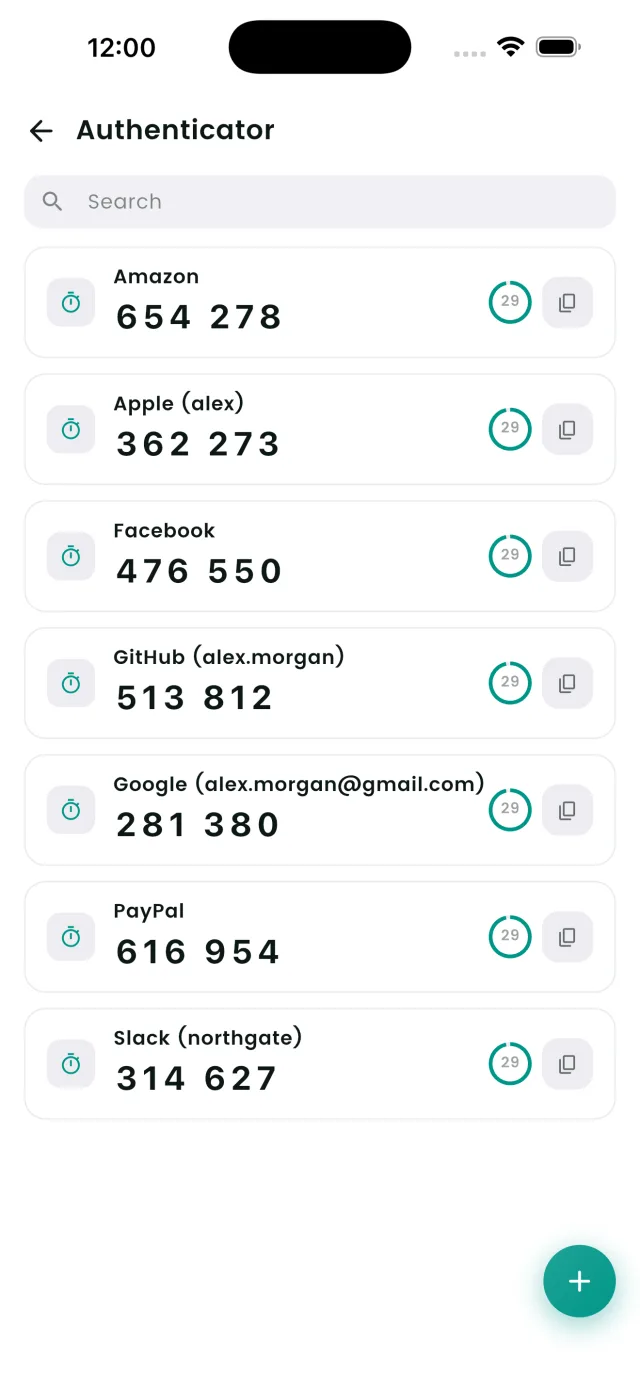
Adding a 2FA code in DroidPass on a new account
For sites you're setting up from scratch, the flow is the same minus the migration: enable 2FA on the site, scan the QR code from the DroidPass entry, confirm with the code. From then on the entry shows a live code with a countdown ring, and tapping it copies the code to your clipboard. The free plan includes one authenticator code; DroidPass Pro unlocks unlimited codes and encrypted sync. Full details are on the built-in authenticator feature page and in our launch post.
Replace Google Authenticator with one encrypted vault
Passwords and 2FA codes together — free on iPhone, iPad, Android, and Mac.
Download for iPhone Download for Android Download for Mac