Any standard authenticator app works on iPhone, because they all generate the same six-digit TOTP codes. Pick by what you need: the simplest option is the Apple Passwords app, the most familiar is Google Authenticator, and the most convenient is a password manager that keeps the code next to the login.
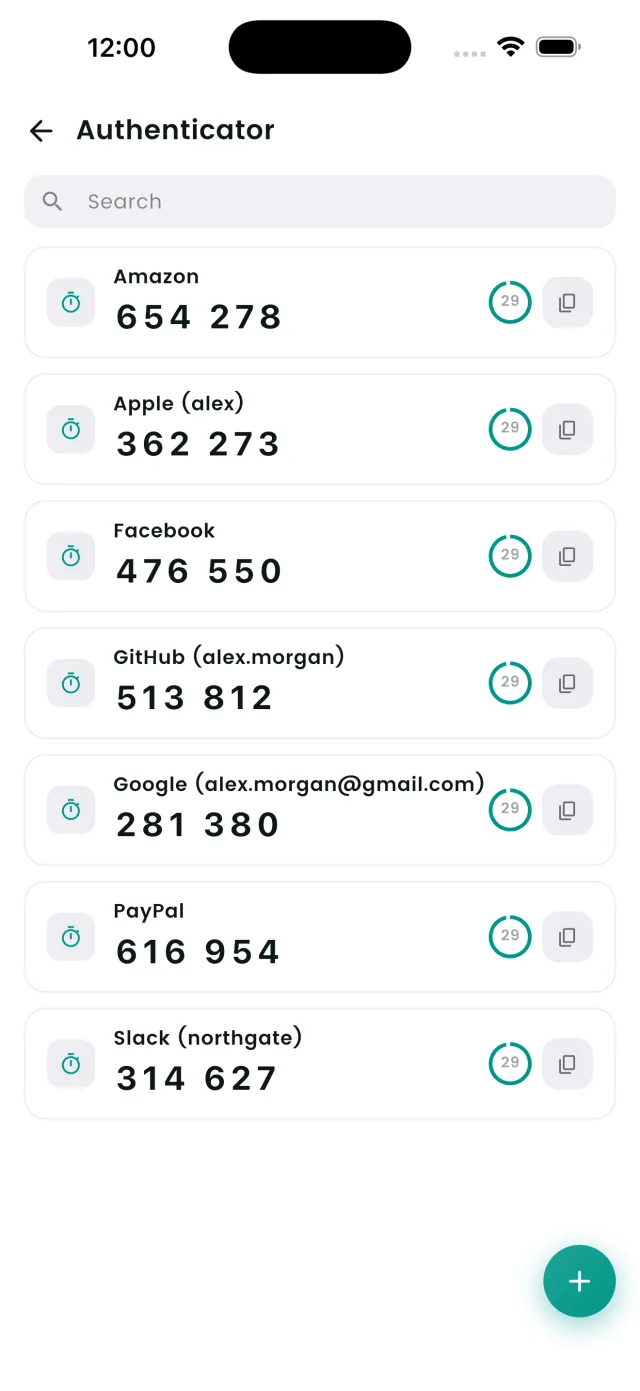
What an authenticator app does on iPhone
When you turn on two-factor authentication (2FA), a site asks for a second proof after your password. An authenticator app produces that proof: a time-based one-time password (TOTP), a six-digit code that changes every 30 seconds. You scan a QR code once when you set the site up, and the app calculates the codes on your phone from then on. The calculation happens on the device, so the codes keep working without a connection.
Your options on iPhone
| Option | Sync and backup | Best for |
|---|---|---|
| Apple Passwords app | Syncs through iCloud Keychain. Verification codes are built into the Passwords app on iOS 18 and later. | People who only use Apple devices and want nothing extra to install. |
| Google Authenticator | Codes can sync to your Google Account, or stay on the one device. | People who already know it and use Google services. |
| Microsoft Authenticator | Offers cloud backup of your accounts on iPhone, and handles Microsoft sign-in prompts. | Work or school Microsoft accounts. |
| A password manager with built-in codes (DroidPass) | Codes are stored in the same encrypted vault as your logins and sync between your devices, including Android. | People who want the password and the code in one place, on iPhone and Android. |
| Hardware security key (for example a YubiKey with NFC) | The key itself is the backup, so buy a spare. | Your most important accounts, on sites that support security keys. |
Whichever you choose, the codes work the same way. If a site asks you to scan a QR code, any of the apps above can read it. Check each vendor's own help page for current backup details, because the apps change.
How to pick one
- You only use Apple devices and want the least effort: use the Apple Passwords app.
- You switch phones often, or share a household with Android users: choose an app that syncs across platforms, such as a password manager with built-in codes.
- You want one place for logins and codes: use a password manager with an authenticator. You get the code on the same screen as the password.
- You want the strongest protection for a few accounts: add a hardware key, and keep a spare.
- You already use Google or Microsoft Authenticator and it works: there is no need to change. Make sure its backup is switched on before you move to a new phone.
How to set up 2FA on iPhone with DroidPass
- On the website you want to protect, open its security settings and turn on two-factor authentication. Choose the authenticator app option. The site shows a QR code and a text setup key.
- In DroidPass, open the Authenticator tab and tap +.
- Point the camera at the QR code. If you cannot scan it, choose to enter a setup key and paste the text key instead.
- Type the six-digit code DroidPass shows back into the website to confirm. 2FA is now on.
- Optionally attach the code to the matching login, so the password and the code sit together. Unlock with Face ID.
The free plan includes one authenticator code, so you can try it on your most important account. DroidPass Pro removes the limit: $29.99 a year on the App Store.
Moving your codes to a new iPhone or another app
Moving authenticator codes is the step that catches people out. Before you wipe or replace a phone, check that your current app has a backup or an export. If you use Google Authenticator, our guide to transferring Google Authenticator to a new phone covers it step by step. If you are choosing between the two big apps, see Authy vs Google Authenticator. Keep the recovery codes each site gave you when you turned on 2FA, because they get you back in if a phone is lost.
Is it safe to keep 2FA codes next to your passwords?
It is a real trade-off. When one vault holds both the password and the code, someone who breaks into that vault gets both, which is why some security experts keep them apart. For most people the bigger risk is having no 2FA at all, and 2FA inside a password manager is far better than none. If an account is critical, such as your email or bank, protect it with a hardware key or keep its code in a separate app. You can read more on the built-in authenticator page, and compare other options in our Google Authenticator alternatives guide.
Frequently asked questions
Which authenticator app is best for iPhone?
There is no single best app, because they all produce the same TOTP codes. The Apple Passwords app is the simplest on iPhone, Google Authenticator is the most familiar, and a password manager with built-in codes is the most convenient if you also want your logins in the same place.
Does iPhone have a built-in authenticator?
Yes. On iOS 18 and later, the Apple Passwords app can generate verification codes for sites that support authenticator apps, and it syncs them through iCloud Keychain.
Do authenticator codes work offline?
Yes. TOTP codes are calculated on your phone from a stored secret and the current time, so they keep working in airplane mode as long as the phone's clock is correct.
Can I use Google Authenticator on iPhone?
Yes. Google Authenticator is available for iPhone, and it can sync your codes to your Google Account if you turn that on.
What happens if I lose my iPhone?
If your codes are backed up or synced, install the app on a new phone and sign in to restore them. If not, use the recovery codes each site gave you when you turned on 2FA. Set up a backup before you need it.
Is a free authenticator enough?
Yes. The standard apps are free. DroidPass includes one authenticator code on the free plan, and Pro unlocks unlimited codes.
Keep your 2FA codes next to your logins
One app for passwords and two-factor codes on iPhone and Android. Start free.
Download for iPhone