Turn on AutoFill iPhone & iPad
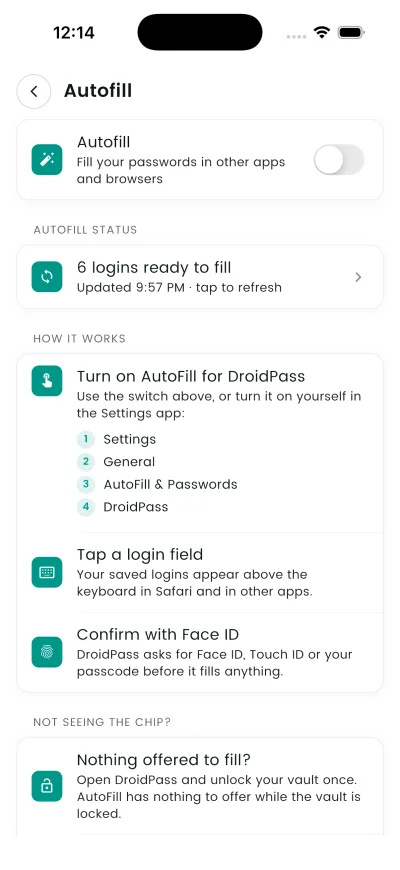
iOS lets one or more apps supply passwords to every other app. You switch DroidPass on once in Settings.
Why this matters
Turn on DroidPass autofill and your saved logins appear on the keyboard whenever an app or website asks for one.
Your saved logins appear above the keyboard in Safari and in other apps.
Steps
- In DroidPass, open Settings then Autofill, and use the switch there.
- If iOS does not open the switch for you, turn DroidPass on yourself: Settings › General › AutoFill & Passwords.
- Your saved logins appear above the keyboard in Safari and in other apps.
- DroidPass asks for Face ID, Touch ID or your passcode before it fills anything.
Good to know
- Open DroidPass and unlock your vault once. AutoFill has nothing to offer while the vault is locked.
- Suggestions above the keyboard match on the website saved with a login. Add the site to that login and it will be offered here.
- You can leave Apple Passwords switched on at the same time — iOS offers both.
- If the sheet comes up empty with a full vault, open DroidPass, sign out and back in. That rebuilds the shared snapshot.