Import from a CSV file
Direct transfer is the better route and needs no file at all. Use CSV only when the other app does not support a direct transfer.
Why this matters
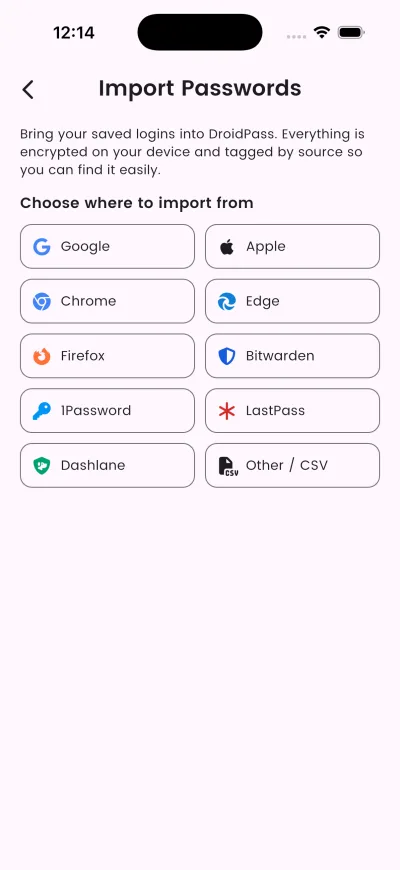
Bring your saved logins into DroidPass. Everything is encrypted on your device and tagged by source so you can find it easily.
Use this only when the other app cannot do a direct transfer. A CSV is plain text: anyone who opens it reads every password in it.
Steps
- Open Settings, then Import Passwords. It lists Google, Apple, Chrome, Edge, Firefox, Bitwarden, 1Password, LastPass, Dashlane and Other / CSV.
- On a computer, open passwords.google.com and sign in.
- Open Settings, then tap “Export passwords”.
- Save the CSV file and send it to this device (email, Drive, AirDrop).
- Come back here, tap “Select CSV file” and choose it.
What happens next
Ready to import
Delete the CSV from your device, your downloads and whatever you used to move it across. That file is now a copy of your whole vault.
If it does not work
- Choose a different file
Good to know
- From Apple Passwords on iPhone, the steps differ slightly: open the Passwords app, tap ••• then Export All Passwords, save to Files, and pick it here.
- A CSV is a plain text file — anyone who opens it can read every password. Delete it from your device once the import finishes.
- Try the direct transfer first. It needs no file, and nothing is left behind in Downloads.