Save your Emergency Kit
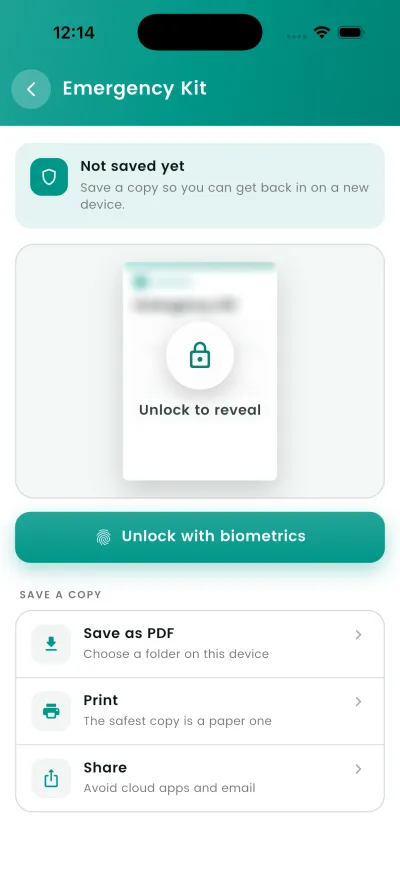
A one-page PDF you save once. The screen calls it the Emergency Kit and shows what goes on the page before you reveal it.
Why this matters
Your vault is encrypted with your Master PIN. If you forget it, this kit is the only way back in — DroidPass can't reset it for you.
Your vault is encrypted on your device. The kit holds the two things needed to open it again.
Steps
- Open Settings, then Emergency Kit. During sign-up it is offered automatically.
- Tap Unlock with biometrics, and confirm with Face ID, your fingerprint or your Master PIN.
- Choose Save as PDF, Print or Share. Print is the safest: a paper copy cannot be synced anywhere.
- Do not leave the only copy on the same phone as the app.
What happens next
Emergency Kit saved to your device. Print a copy and keep it somewhere only you can reach.
Keep this page somewhere secure — a safe, a locked drawer, or another place only you can reach.
Good to know
- How the Emergency Kit works
- Your Secret Key
- A one-off code created on your device. We print it so you never have to remember it.
- A setup code
- Scan it instead of typing the Secret Key on a new phone.
- One printed page is enough — keep it somewhere secure.
- Changing your Master PIN doesn't change your Secret Key.
- Only you hold the keys
- Your Secret Key and Master PIN never reach our servers, so support can't reset them for you.
- Security → Emergency Kit