Add a contact
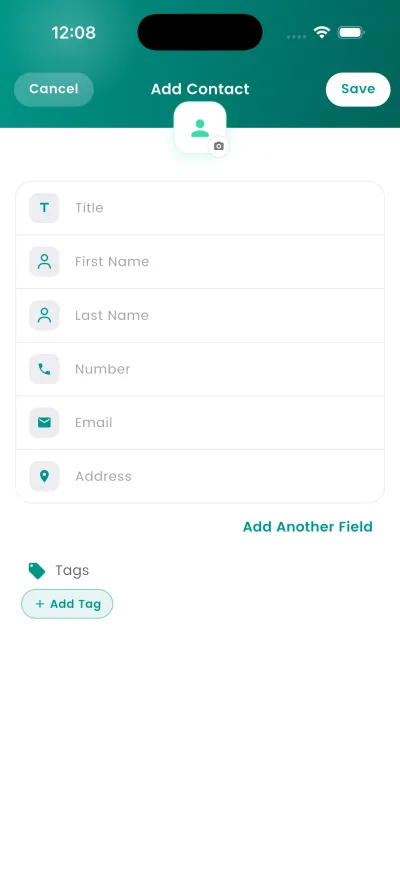
Your vault holds more than passwords. Saving a contact works the same way as a login: name, phone, email and address.
Why this matters
A password manager that only holds passwords leaves the rest of your life on paper. Card numbers, account details and recovery codes are the things people end up photographing and emailing to themselves.
Steps
- Open DroidPass and unlock with Face ID, your fingerprint or your Master PIN.
- Tap the + button and choose Contact.
- Fill in the fields. Only the name is required — the rest you can add later.
- Tap Save. The entry appears in your vault straight away.
What happens next
The entry appears in your vault immediately and syncs to your other devices. Search finds it by name, and the filter chips narrow the list by type.
Good to know
- Entries are encrypted on your device and sync to your other devices automatically.