Turn on autofill Android
Android has one autofill service at a time. Setting DroidPass as that service replaces whatever was there, usually Google or Samsung Pass.
Why this matters
Turn on DroidPass autofill and your saved logins appear on the keyboard whenever an app or website asks for one.
Steps
- Open Settings, then Autofill.
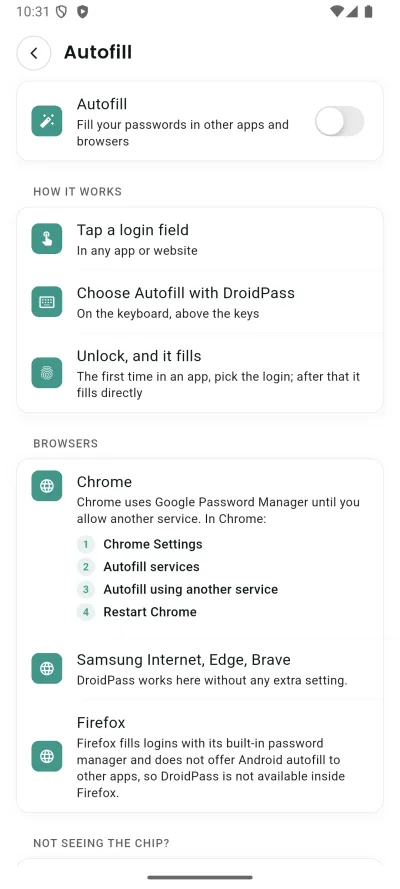
- On. DroidPass fills logins in other apps and browsers
- Make sure DroidPass is the selected autofill service.
If it does not work
- Chrome keeps its own autofill unless you allow another service: Chrome Settings › Autofill services › Autofill using another service.
- One UI 7 and 8 do not always report the chosen service back to apps, so this switch can read off while autofill works fine. Try a login field first. If nothing appears, set Preferred service to None, then back to DroidPass.
- Aggressive battery limits can shut the autofill service down in the background. If suggestions stop appearing, set DroidPass to Unrestricted in Settings › Apps › DroidPass › Battery.
- On Xiaomi, Redmi and POCO the unlock screen can only open over another app with two extra permissions: Settings › Apps › Manage apps › DroidPass › Other permissions, then turn on “Display pop-up windows while running in the background” and Autostart.
- On OnePlus, OPPO, Realme, vivo and iQOO the unlock screen needs the floating-window permission: Settings › Apps › DroidPass (or Privacy › Floating windows), then allow floating windows.
- A few apps block autofill or close as soon as another screen appears; nothing can fill those.
- The master PIN is not stored on this device. Lock and unlock the vault, then try again.
Good to know
- On Pixel and stock Android: Settings › Passwords, passkeys & accounts, then tap Change under the current service. On Android 12–13 it is Settings › Passwords & accounts › Autofill service.
- On Samsung: Settings › General management › Passwords, passkeys and autofill, then tap the cog beside Preferred service and pick DroidPass.
- On Xiaomi, Redmi and POCO: Settings › Additional settings › Languages & input › Autofill service.
- On OnePlus, OPPO and Realme: Settings › Additional settings › Autofill service.
- On vivo and iQOO: Settings › Languages & input › Autofill service.
- On Huawei and Honor: Settings › Security › Password Vault › Manage autofill settings.
- Usually Settings › Passwords & accounts › Autofill service, or search Settings for “Autofill”.
- Samsung phones come with Samsung Pass as the autofill service. Choosing DroidPass replaces it; you can switch back any time.
- With Gboard your logins appear on the keyboard; with Samsung Keyboard and most others they appear as a dropdown just above the field.
- Chrome uses Google Password Manager until you allow another service: Chrome Settings › Autofill services › Autofill using another service, then tap Restart Chrome.
- Firefox fills logins with its built-in password manager and does not offer Android autofill to other apps, so DroidPass is not available inside Firefox.