Create a passkey
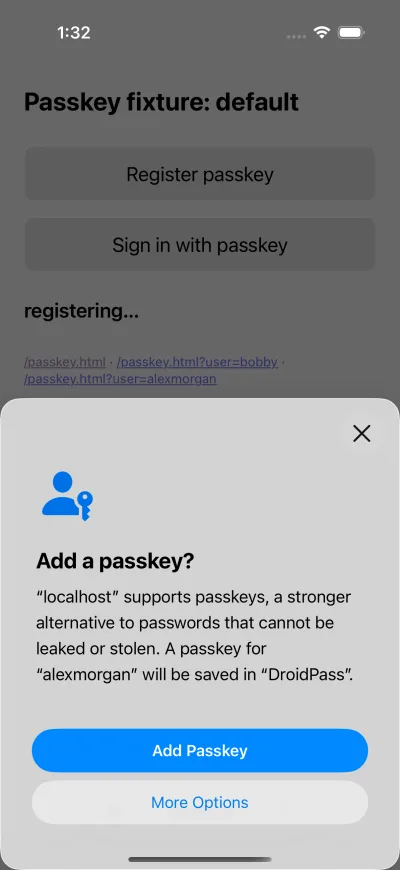
You do not create passkeys from inside DroidPass. The website asks, and you pick DroidPass as the place to keep it.
Why this matters
Create a passkey on the website or app itself, then choose DroidPass when your phone asks where to save it. It appears in this list straight away.
Steps
- On a site that supports passkeys, choose its option to create one.
- When your device asks where to save it, choose DroidPass.
- Confirm with Face ID, your fingerprint or your Master PIN.
- The passkey appears under Passkeys in the side menu.
If it does not work
- When a website offers to create a passkey, choose DroidPass and it will appear here.
- Your passkeys were saved by a newer version of DroidPass. Update the app to use them.
Good to know
- When a website offers to create a passkey, choose DroidPass and it will appear here.
- One passkey on the free plan. Upgrade for unlimited.
- Passkeys must be turned on in DroidPass first, or your device will not offer it as a choice.
- To try one without touching a real account, passkeys.io is a public demo by Hanko. It asks for an email address and a made-up one is fine — but that passkey is then the only way back into that demo account.