Lock and unlock
The vault locks on a timer you set. Biometrics are a shortcut past the PIN, never a replacement for it.
Why this matters
Quick and secure access with your fingerprint or face - no need to remember complex passwords
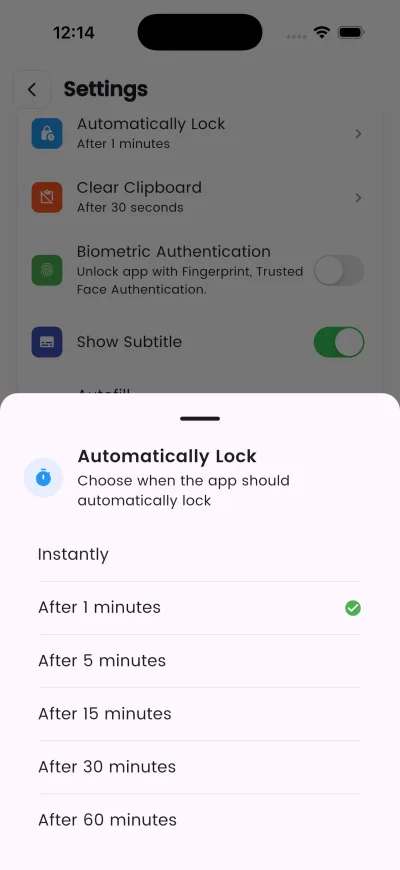
Choose when the app should automatically lock
Steps
- Open Settings, then Automatically Lock, and choose when the app should lock.
- Turn on Biometric Lock to use Face ID or your fingerprint.
- Your Master PIN still works whenever biometrics fail or are unavailable.
What happens next
Automatically clear copied passwords from the clipboard
If it does not work
- You need master pin to unlock your droidpass vault on another device. Please keep your master pin safe.
- Enter your Master PIN once so fingerprint or face can unlock next time
- Open DroidPass and unlock your vault once. AutoFill has nothing to offer while the vault is locked.
Good to know
- On iPhone the AutoFill sheet asks for Face ID every time, separately from the app — that is the only gate protecting it.
- A locked vault offers nothing to autofill. If suggestions stop appearing, unlock the app once.