Transfer from another app iPhone & iPad
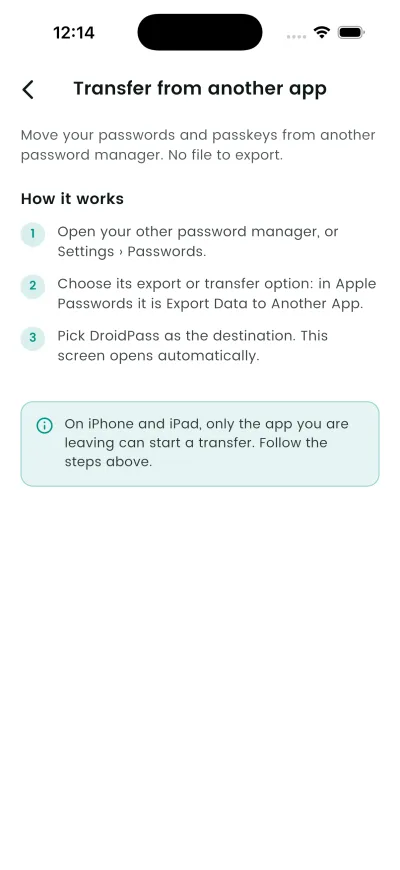
On iPhone and iPad the transfer is started from the app you are leaving, not from DroidPass. That is how Apple designed it, so there is no Start button on this screen.
Why this matters
Move your passwords and passkeys from your old password manager. No file needed.
The export step is where most people abandon a switch: a plaintext file of every password, sitting in Downloads. This route never writes one.
Steps
- Open your other password manager, or Settings › Passwords.
- Choose its export or transfer option: in Apple Passwords it is Export Data to Another App.
- Pick DroidPass as the destination. This screen opens automatically.
What happens next
The logins appear in your vault, tagged by where they came from. Your old manager keeps its copy until you delete it there.
If it does not work
- That transfer couldn't be read. Start it again, or import a file instead.
- To import passkeys, turn on passkeys in DroidPass, then transfer again.
- {count, plural, =1{1 passkey could not be imported.} other{{count} passkeys could not be imported.}}
Good to know
- In Apple Passwords the option is under the ••• More menu, not Settings.
- Passkeys are skipped unless passkeys are turned on in DroidPass first. Turn them on, then transfer again.
- Dashlane’s passkey export is currently broken on their side — it fails into Apple Passwords too. Its passwords still come across.
- If a transfer cannot be read, start it again or import a file instead.