Sign in with a passkey
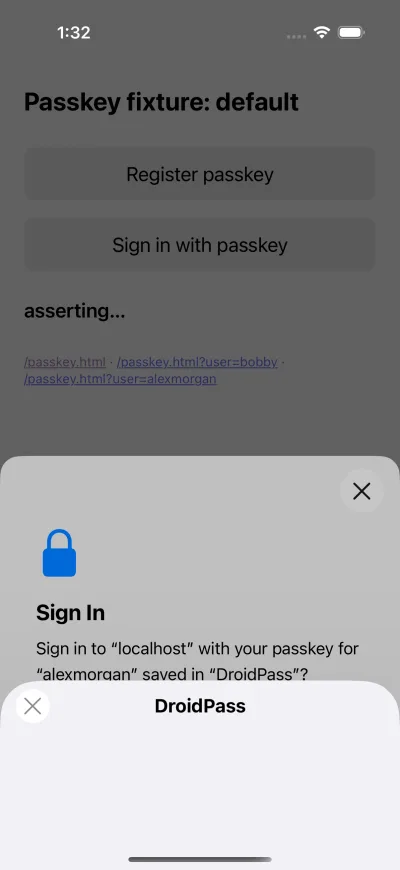
Once a site has your passkey, signing in is a confirmation rather than a typed secret.
Why this matters
Passkeys let you sign in to websites and apps without a password. DroidPass keeps them encrypted with a Secret Key that never leaves your devices.
Steps
- Open the site and tap its sign-in field.
- Choose your DroidPass passkey from the list your device offers.
- Confirm with Face ID, your fingerprint or your Master PIN.
If it does not work
- Open DroidPass and unlock your vault once. AutoFill has nothing to offer while the vault is locked.
- Passkeys were set up on another device. Enter the Secret Key from your Emergency Kit, or scan the code shown in DroidPass on that device.
Good to know
- Passkeys cannot be phished: the key only works on the site it was made for.
- If nothing is offered, open DroidPass and unlock it once — a locked vault has nothing to offer.
- To try one without touching a real account, passkeys.io is a public demo by Hanko. It asks for an email address and a made-up one is fine — but that passkey is then the only way back into that demo account.